Free resume templates that pass and impress
Browse free resume templates in every resume format — each rendered from the same layout engine and clearly labelled ATS-friendly. Start with one and switch any time without losing your content.
Mix ATS-friendly layouts, more visual two-column options, matching cover letters, and real ATS scoring in one builder.
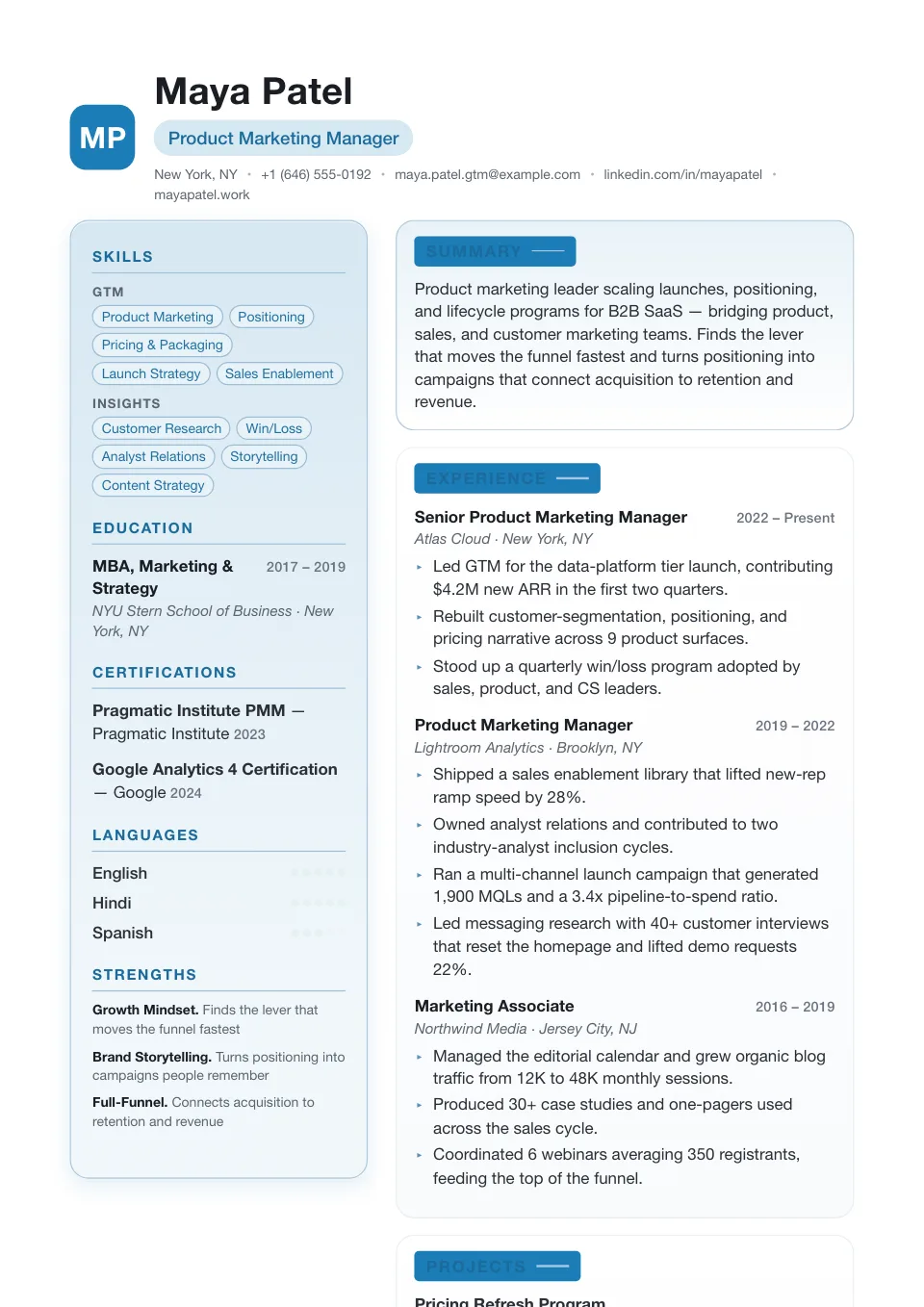
How to choose a resume template and resume format
A resume template — and the resume format underneath it — is not just decoration. It directly affects whether an Applicant Tracking System can read your content and whether a recruiter spends more than six seconds on your page. Pick by three layers, in this order: ATS-friendliness first, then content shape, then visual personality.
ATS-friendliness first
Single-column layouts have the highest ATS parsing confidence — they read top-to-bottom in one column, the way every ATS expects. Two-column and sidebar templates look richer but some older ATS read columns out of order, which can scramble your job titles. We label every template ATS-friendly / Caution so you never gamble.
Match the content you actually have
Heavy bullet experience → Single Column or Timeline. Strong portfolio of named projects → Double Column. Long career history with promotions → Timeline. Lean career → Compact. Use the layout that lets your strongest content breathe instead of forcing it into a fixed grid.
Match the role personality
Creative, design, marketing → Stylish / Creative / Modern (photo-led OK). Consulting, finance, law, executive → Ivy League / Classic / Elegant (serif, centered, restrained). Engineering → Single Column / Modern / Timeline. Healthcare / Education → Minimal / Single Column. When unsure, pick the calmer template.
Modern Resume Templates
Contemporary typography and a clear visual hierarchy make these layouts a natural fit for tech, product, and marketing roles. Browse the modern resume templates and you still get clean ATS parsing, so a sharper look never costs you the screener.
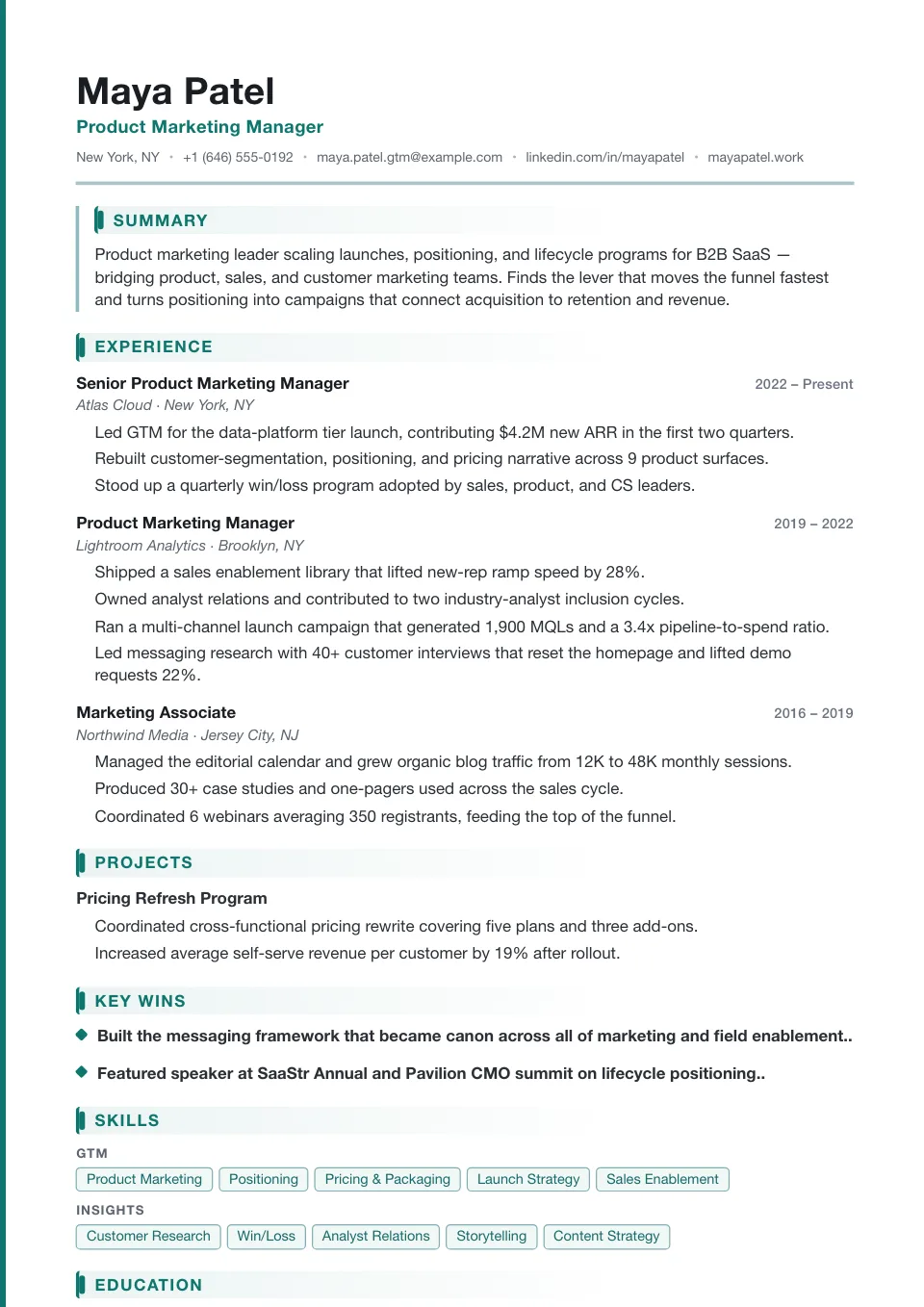
Modern
ATS-friendlyA teal accent band runs down the left edge while bar headings keep experience crisp — contemporary and confident for product and growth teams.
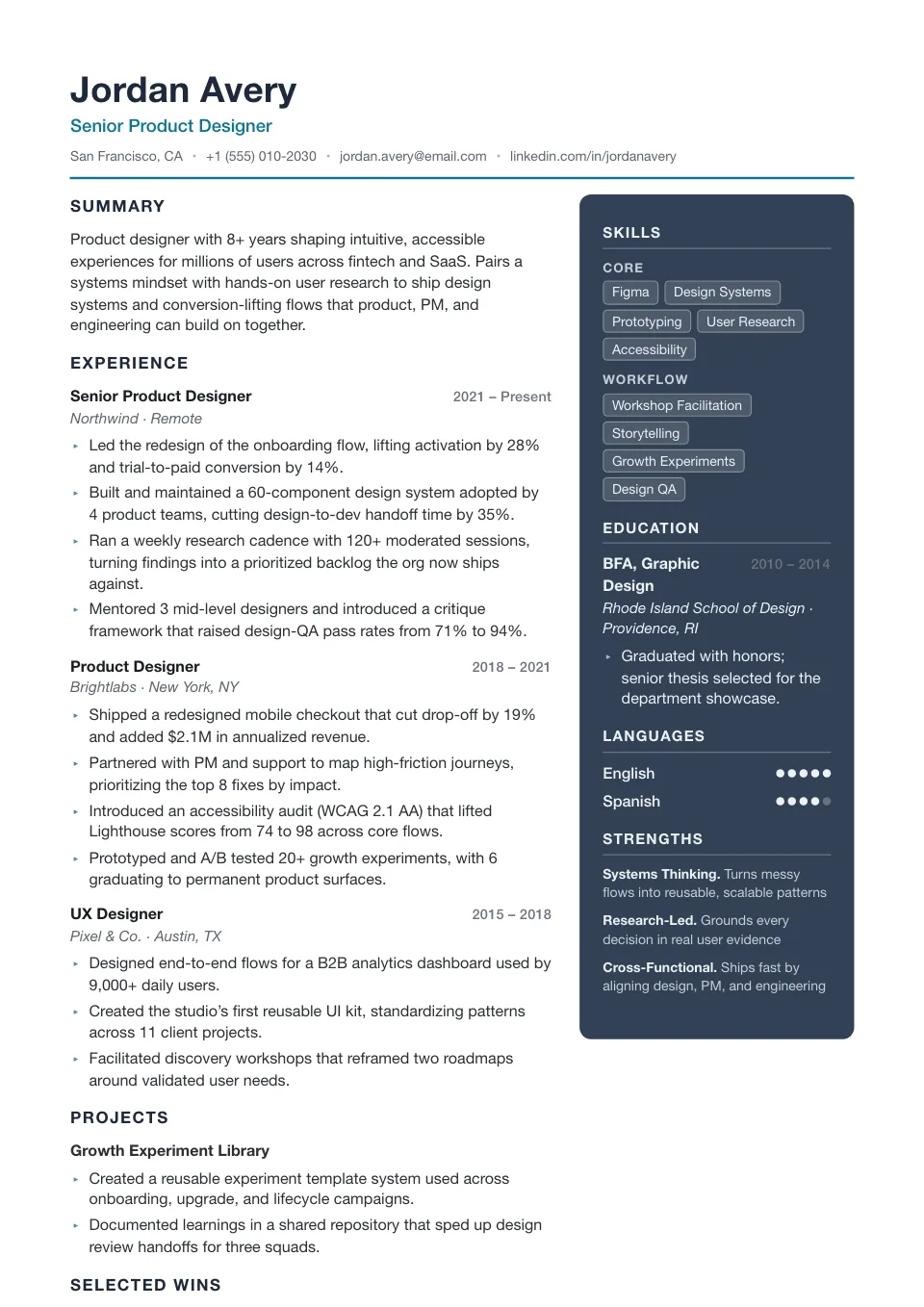
Tech Lead
Two columnA deep slate sidebar on the right with arrow bullets, tightened and technical — for engineering managers and senior ICs.
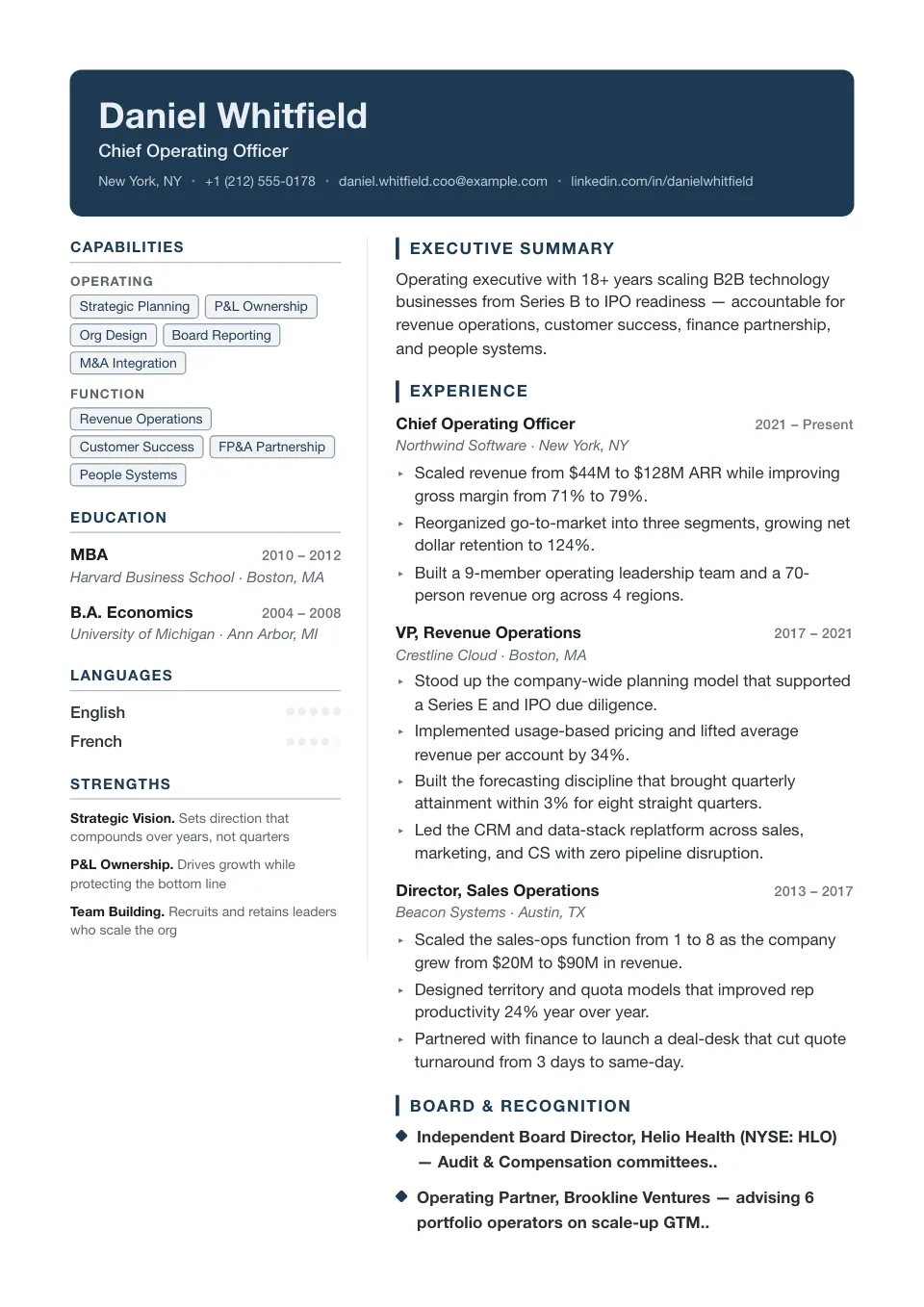
Banner Bold
Two columnA full-width navy banner over a structured two-column body with arrow bullets — a strong masthead for modern profiles.
Traditional Resume Templates
When convention signals professionalism, a traditional resume template keeps the focus on your experience — exactly what finance, law, and corporate hiring teams expect. Single-column and text-first, it is also among the most reliable formats for ATS parsing.
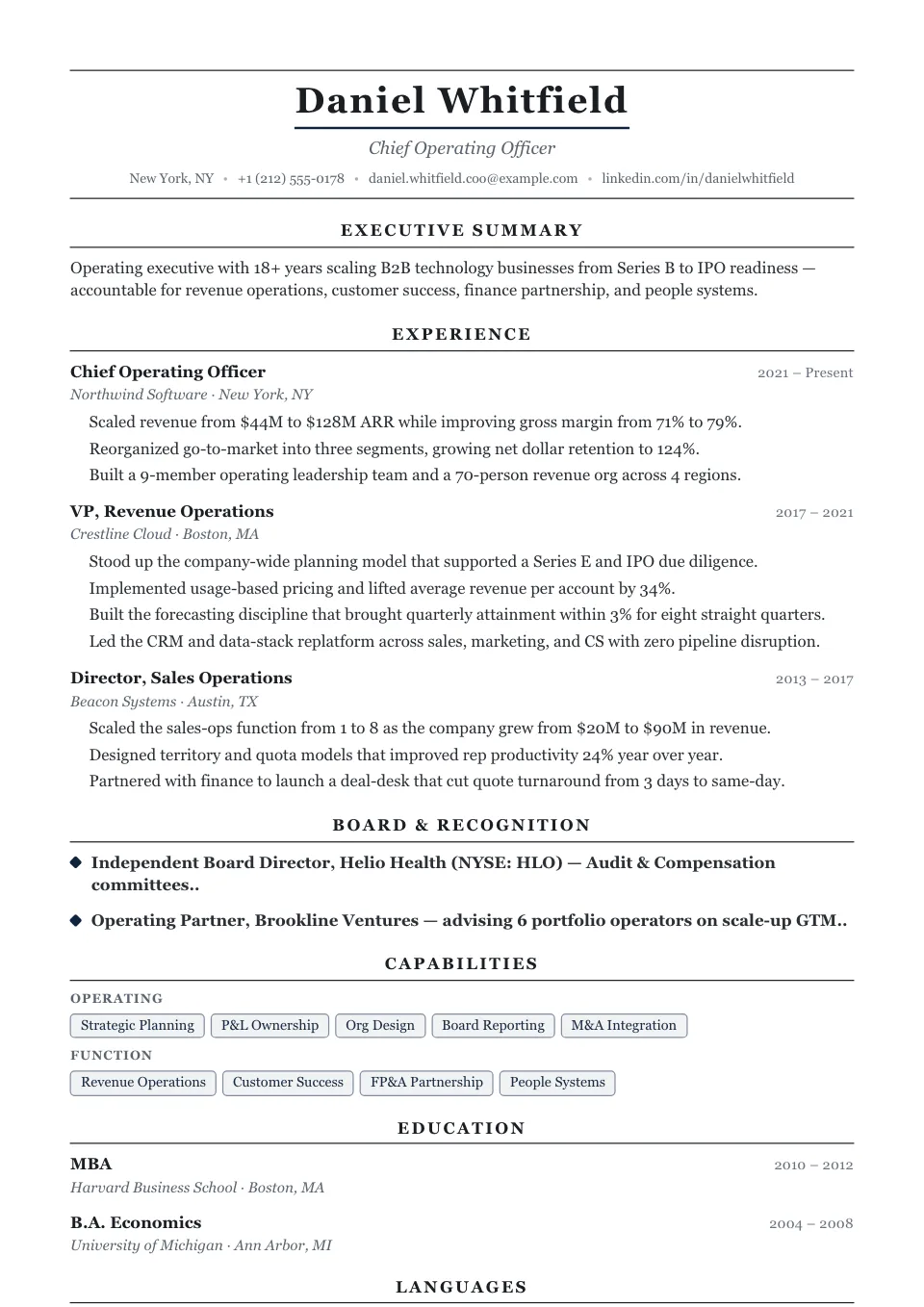
Ivy League
ATS-friendlyCentered, serif-led and quietly prestigious, with a ruled name and centered headings — consulting, academia, law and the C-suite.
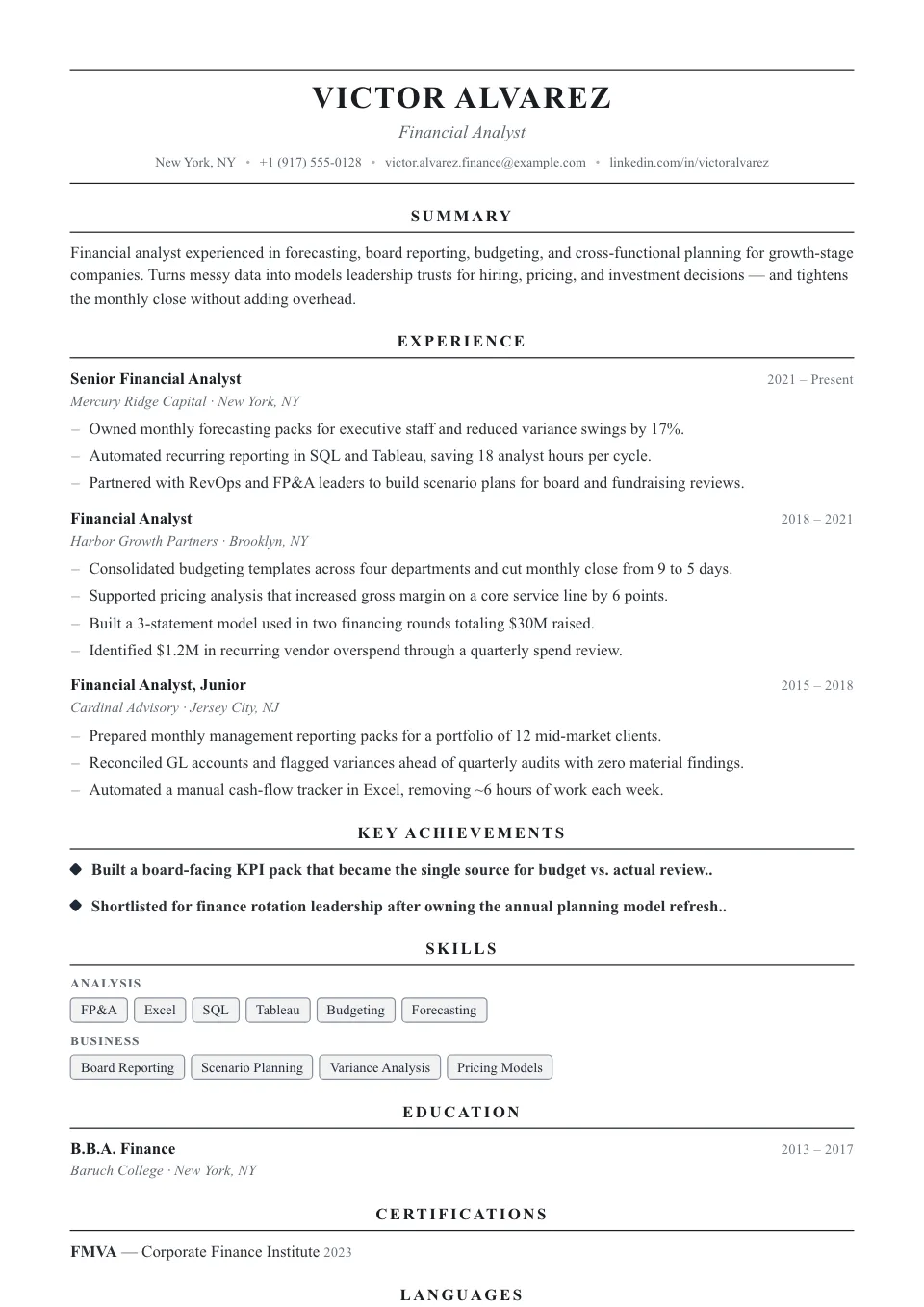
Classic
ATS-friendlyTraditional document rhythm with an uppercase name and conservative serif type — corporate, finance and senior professional roles.
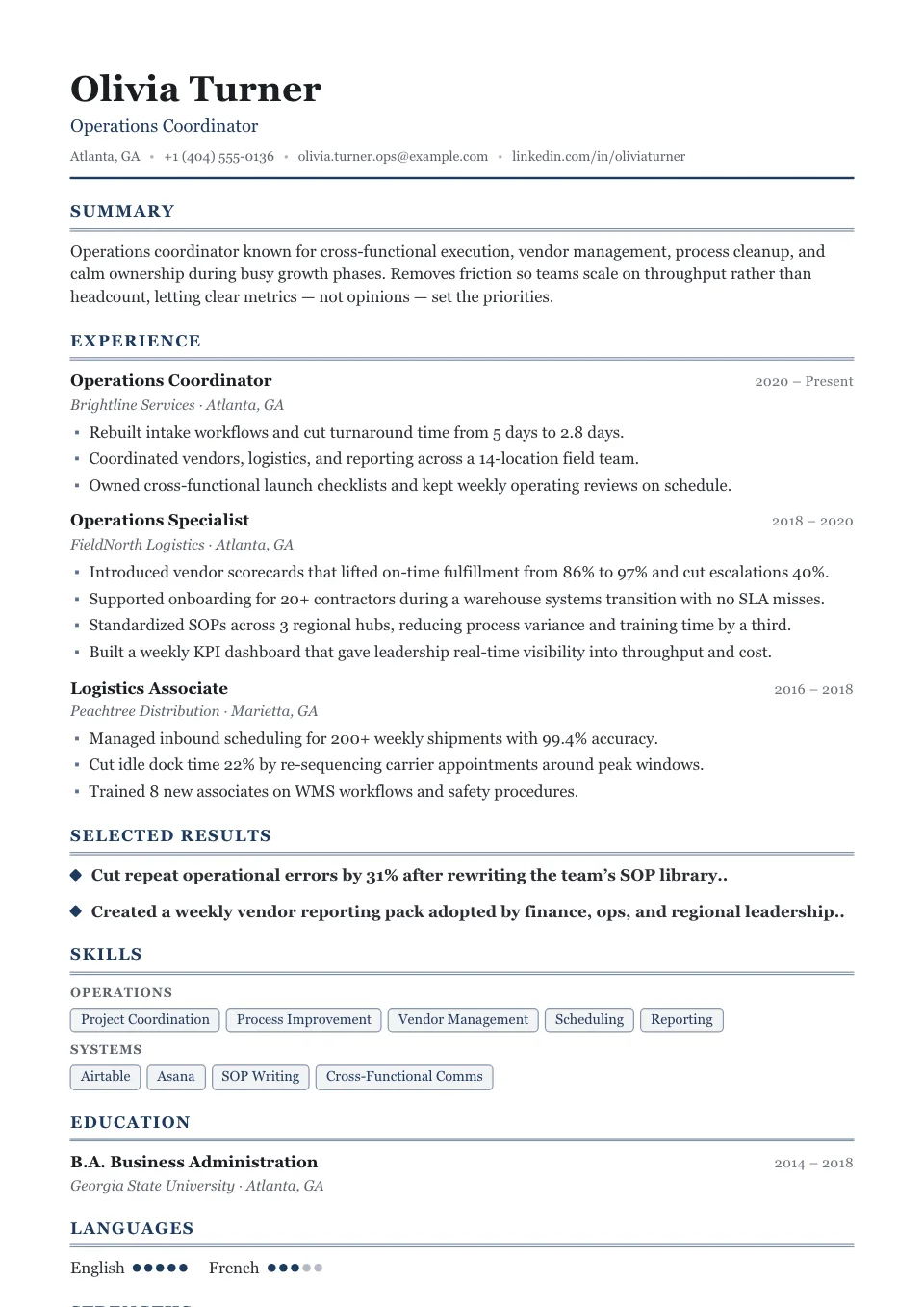
Corporate
ATS-friendlyA buttoned-up serif single column with double-rule dividers and square bullets — the conservative choice for banking, insurance and law.
Creative Resume Templates
Design, marketing, and brand roles reward a bold first impression. A creative resume template leads with accent color and a sidebar that frames your skills, and you can drop back to a single column any time a strict ATS pipeline is the bigger risk.
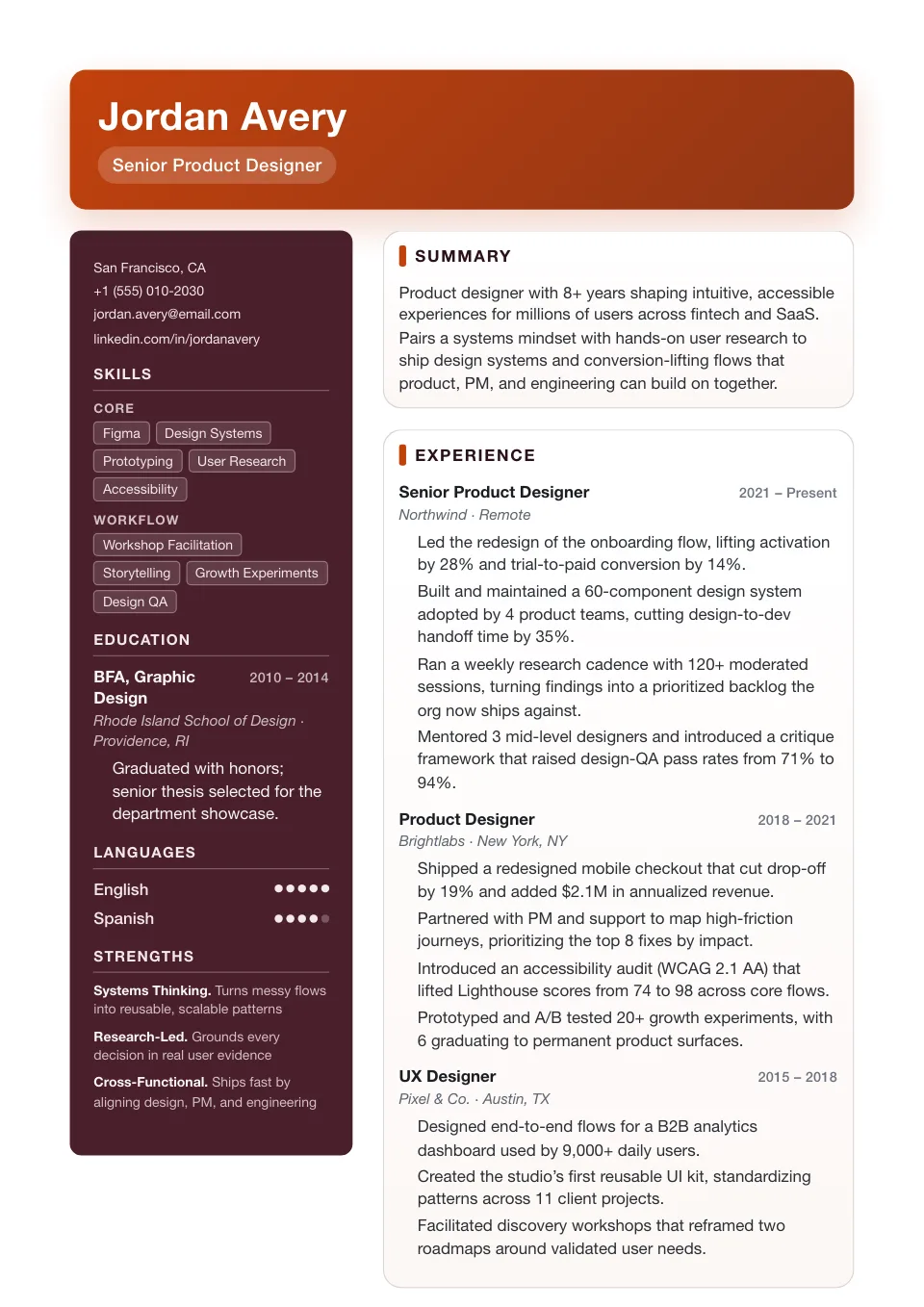
Creative
Two columnAn accent-driven burgundy sidebar carries personality without freeform chaos — a stronger visual first impression for creative fields.
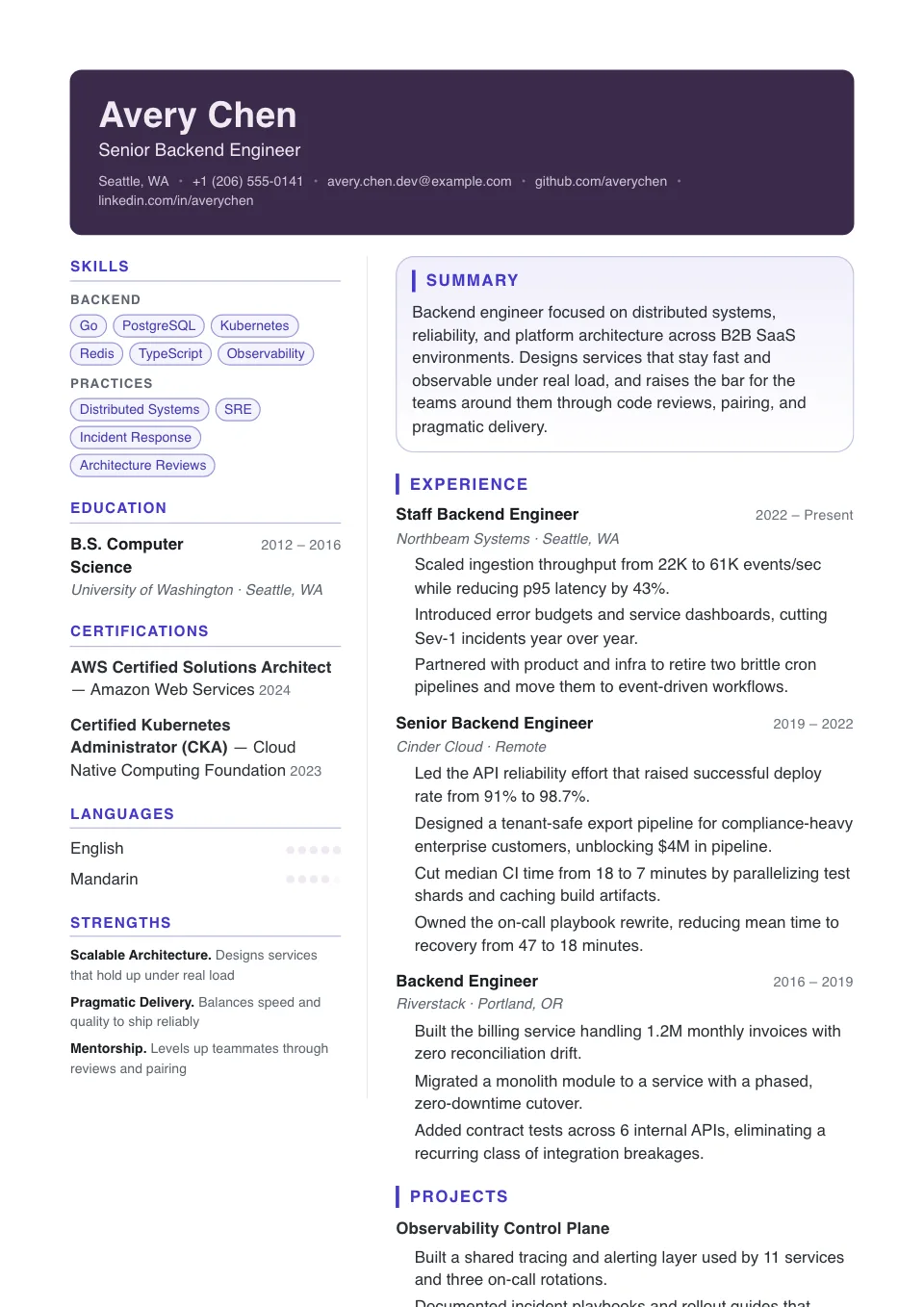
Contemporary
Two columnA full-width plum banner over a deep two-column body — high visual energy for modern, design-aware brands.
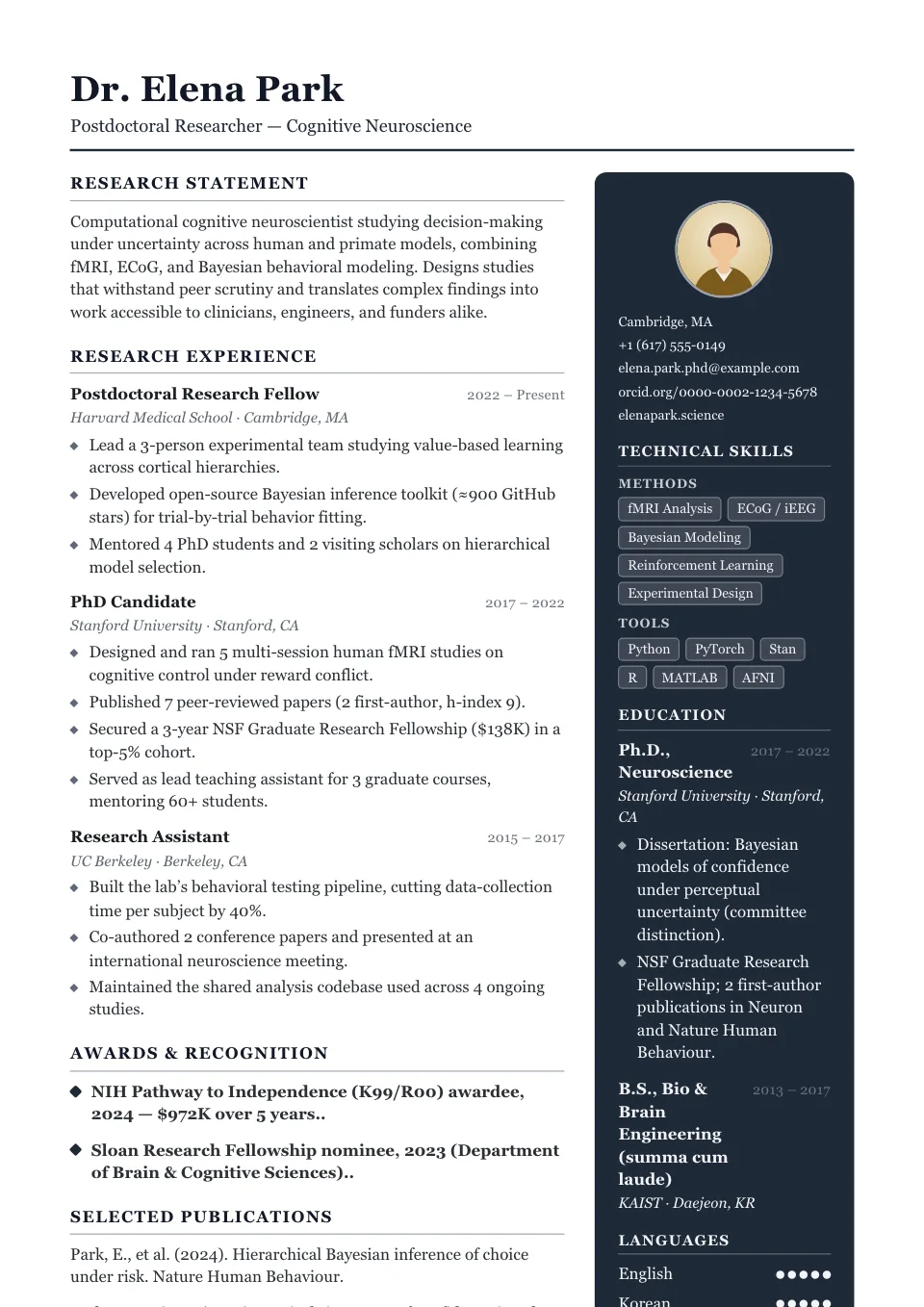
Atelier
Photo — use with careA monochrome studio rail on the right with serif editorial type and diamond markers — restrained, art-directed and distinctive.
Simple Resume Templates
One clean column, clear headings, and comfortable spacing — nothing competes with your content. That makes a simple resume template the easiest kind for recruiters and the ATS to read, and a safe bet across almost any industry.
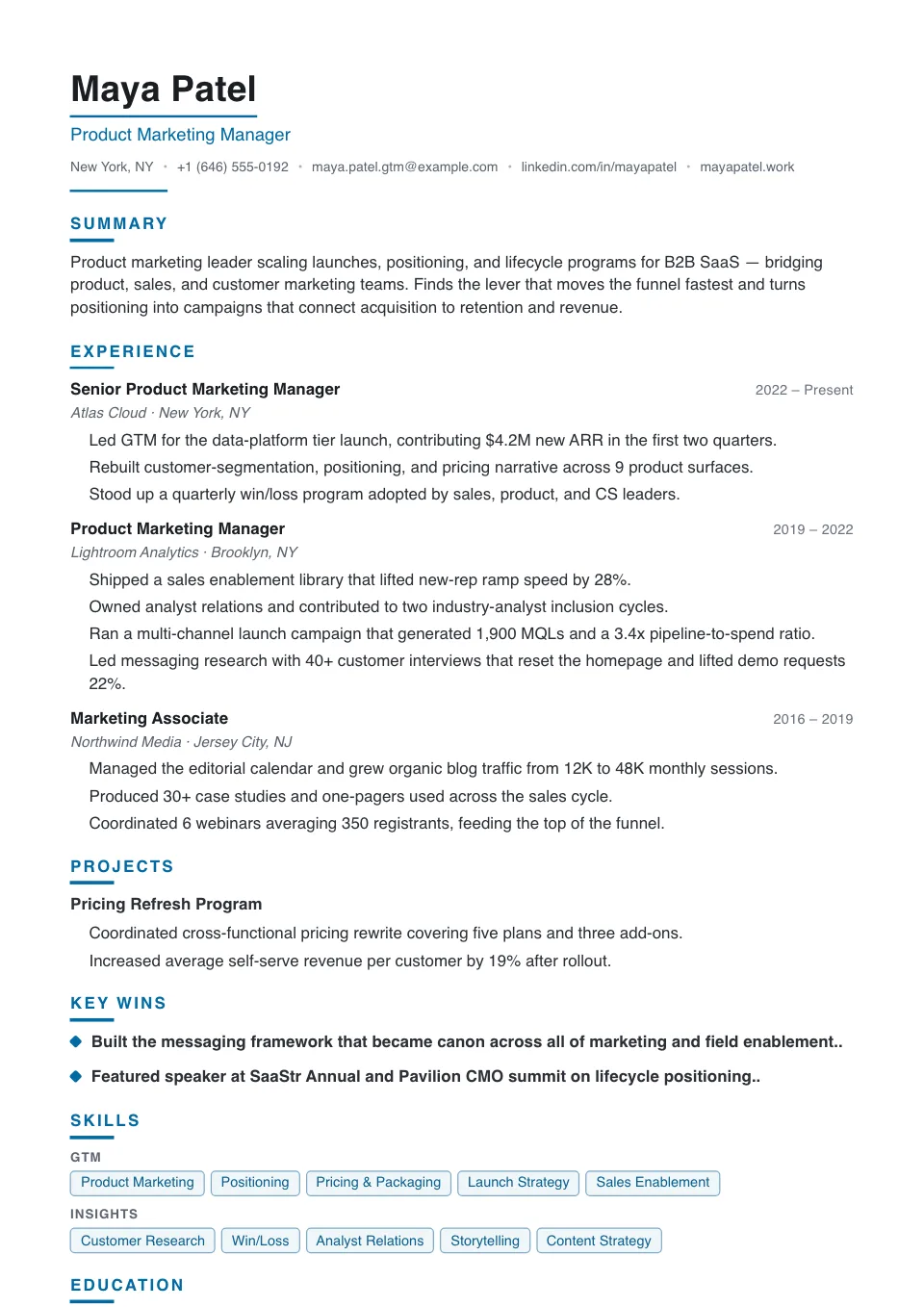
Polished
ATS-friendlyA ruled name plate over a compact, serif-free body with dotted dividers — refined but never ornate, for mid-senior moves.
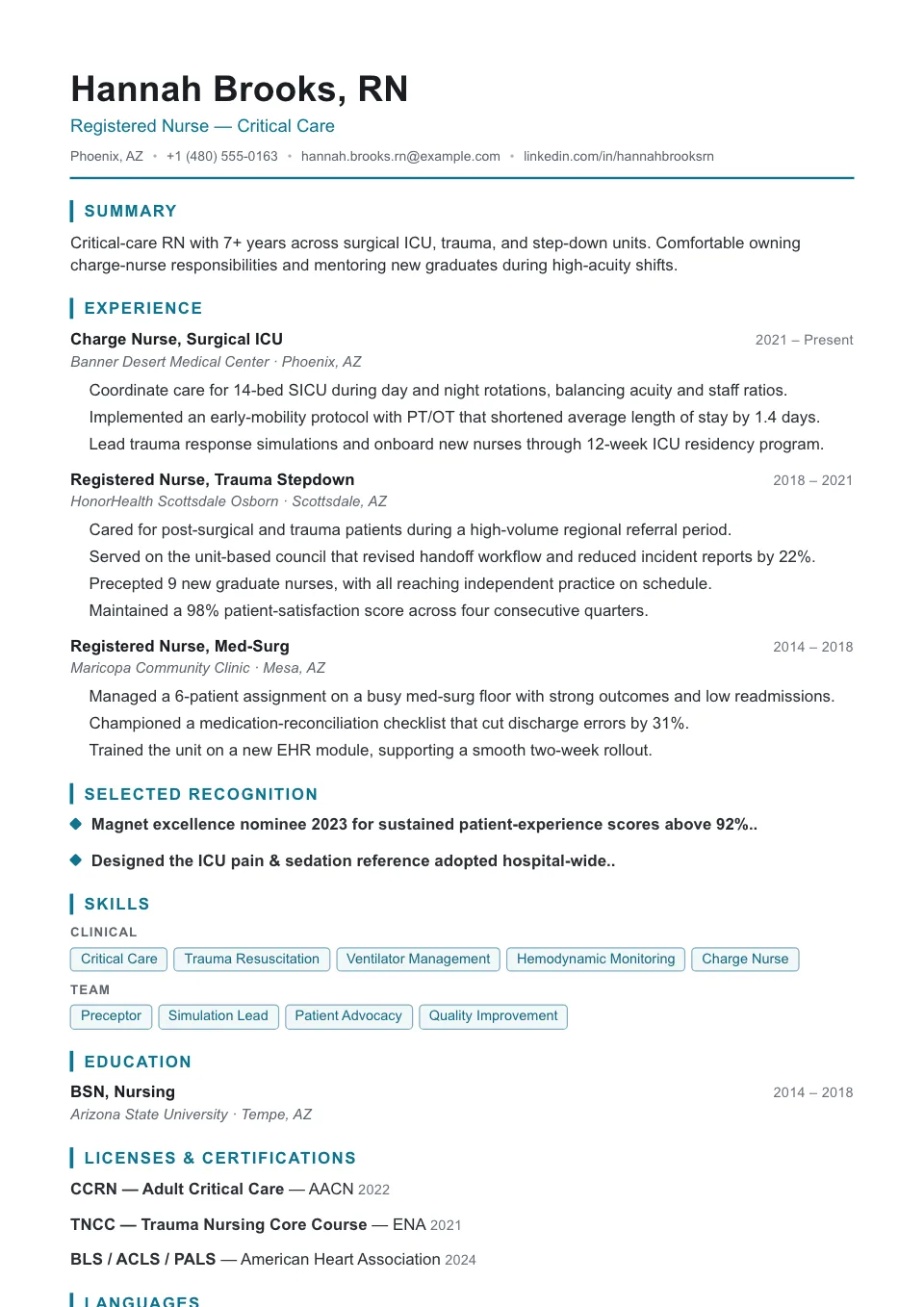
Caregiver
ATS-friendlyA calm, centered single column with accent-bar headings, tuned to foreground licenses and credentials for nursing and clinical roles.
Minimalist Resume Templates
Generous whitespace and quiet typography let your accomplishments do the talking — the hallmark of a good minimalist resume template. The restrained, distraction-free layout reads as senior while staying fully ATS-friendly.
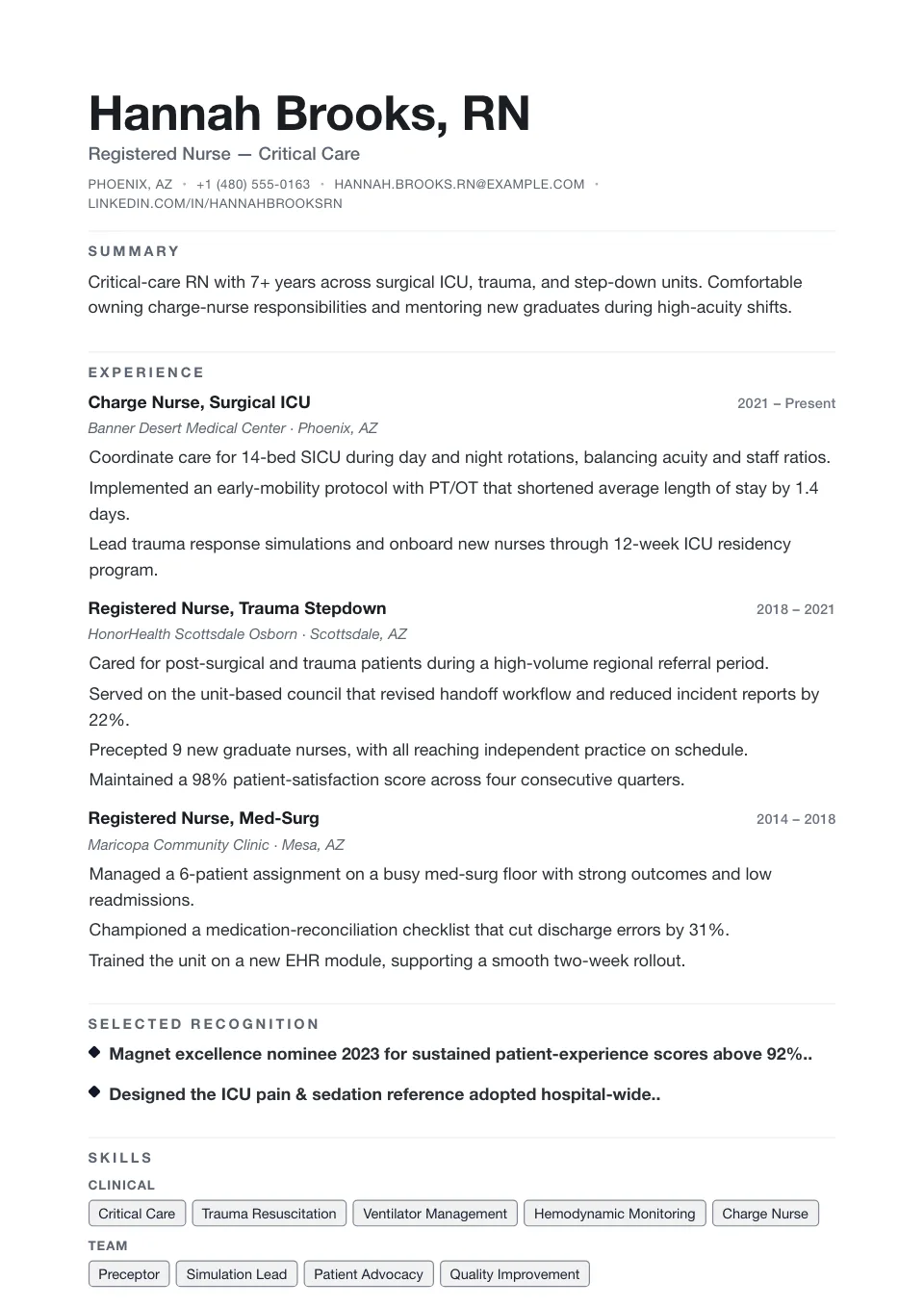
Minimal
ATS-friendlyAn oversized name, no rules, no bullet glyphs and generous whitespace — pure typography for those who let the content speak.
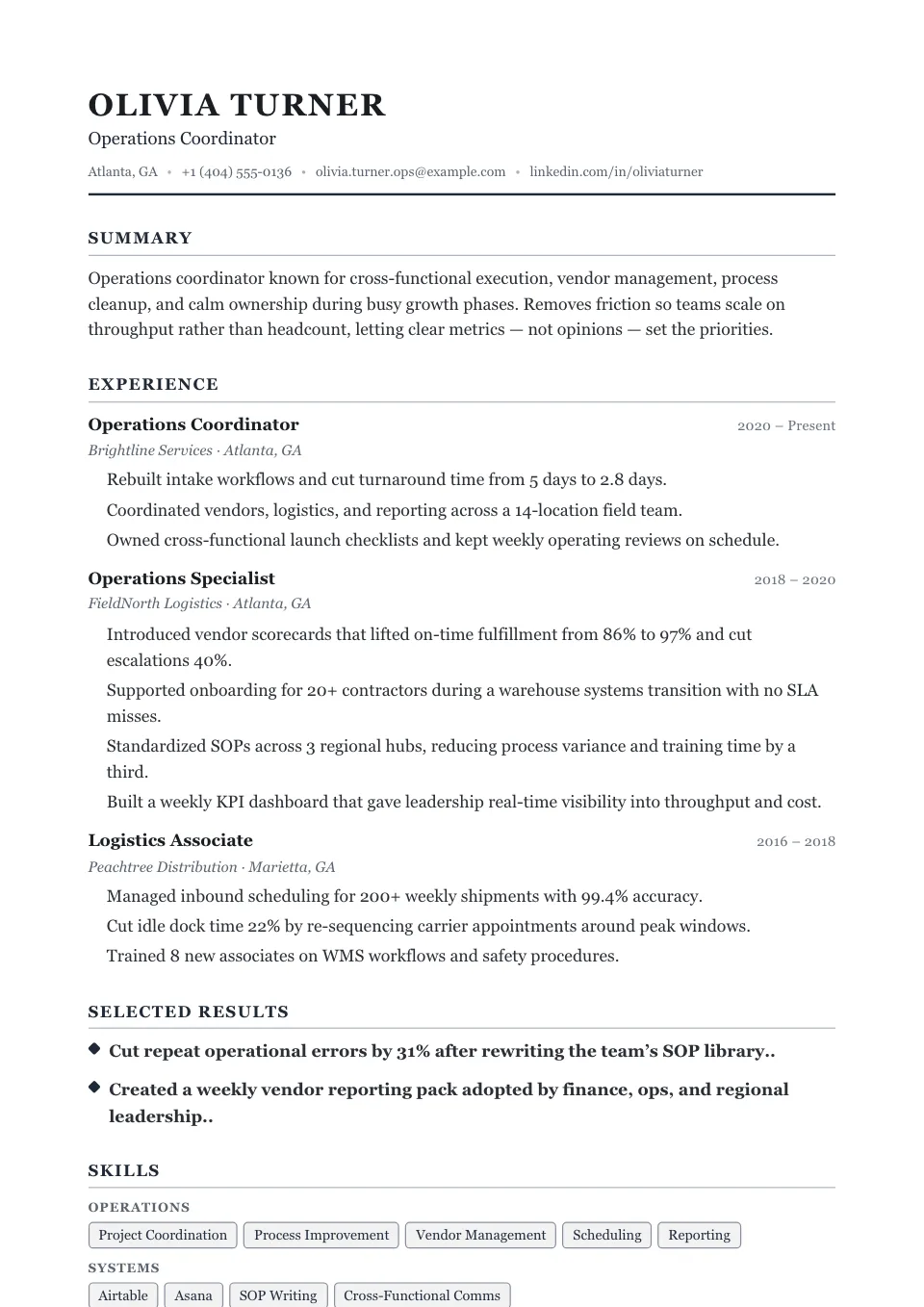
Whitespace
ATS-friendlyAn uppercase serif name with wide tracking, thin underlines and room to breathe between every section — editorial minimalism.
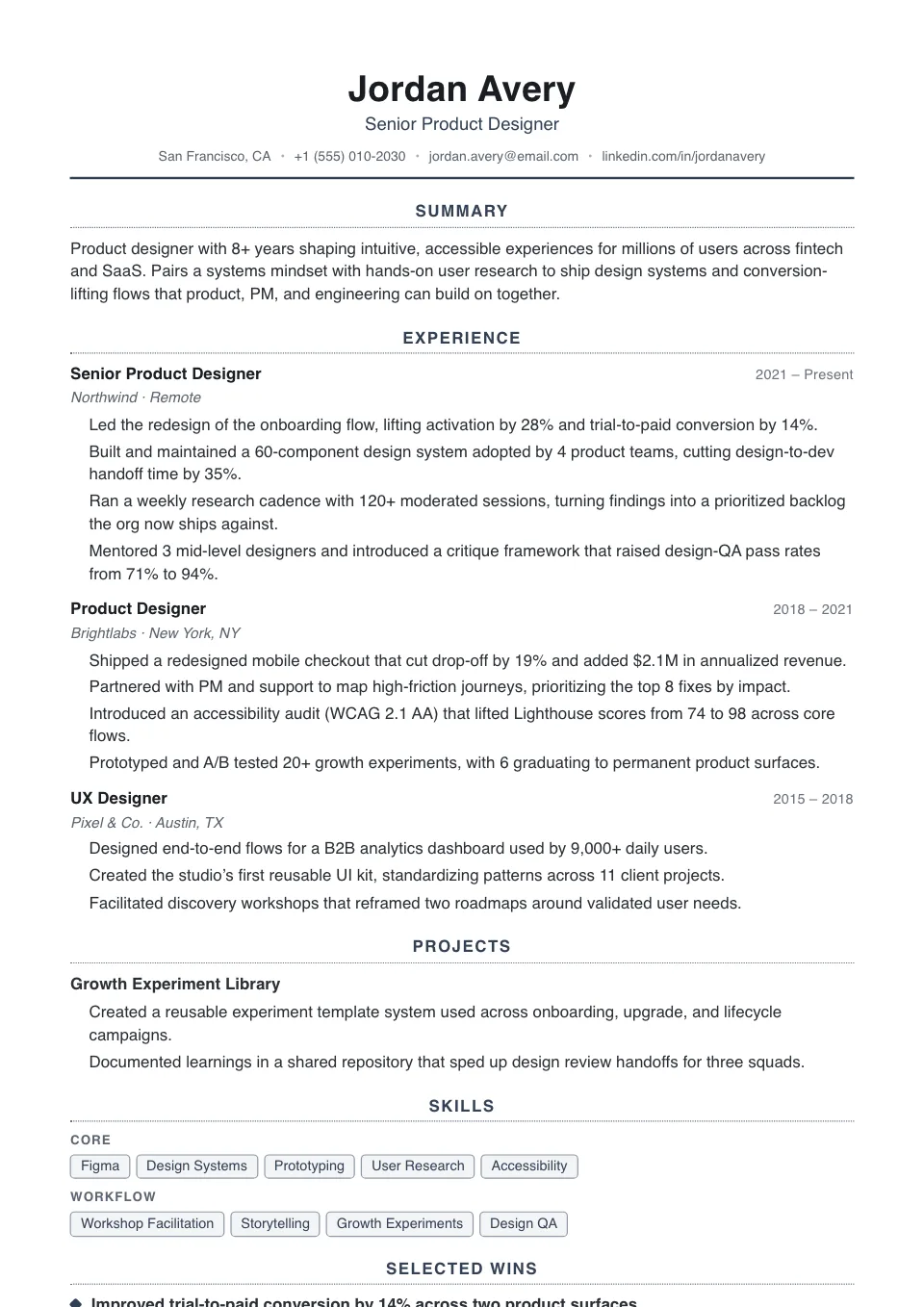
Clarity
ATS-friendlyEverything centered and balanced, with airy dotted dividers — a quiet, symmetrical single column for operations and program work.
Resume Templates with Photo
Once discouraged, photos now matter in fields where presence counts. Photo resume templates showcase your strengths through clean visuals and smart structure — ideal for acting, client-facing, and other face-forward roles. And every one still parses cleanly through the ATS, so a strong first impression never costs you the screener.
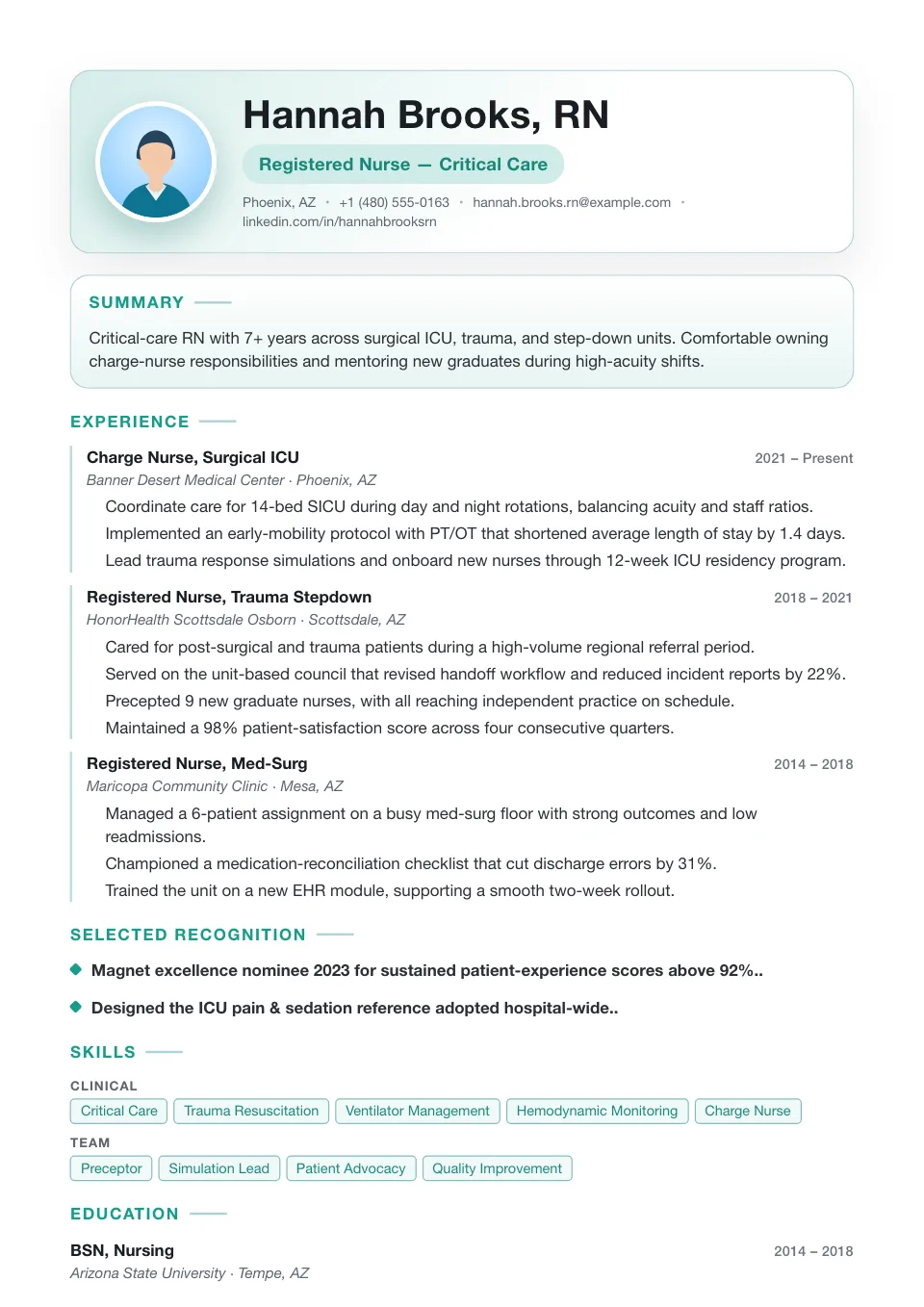
Single Column with Photo
Photo — use with careA clean single column led by a photo-first identity block and a calmer reading rhythm — for people-facing roles.
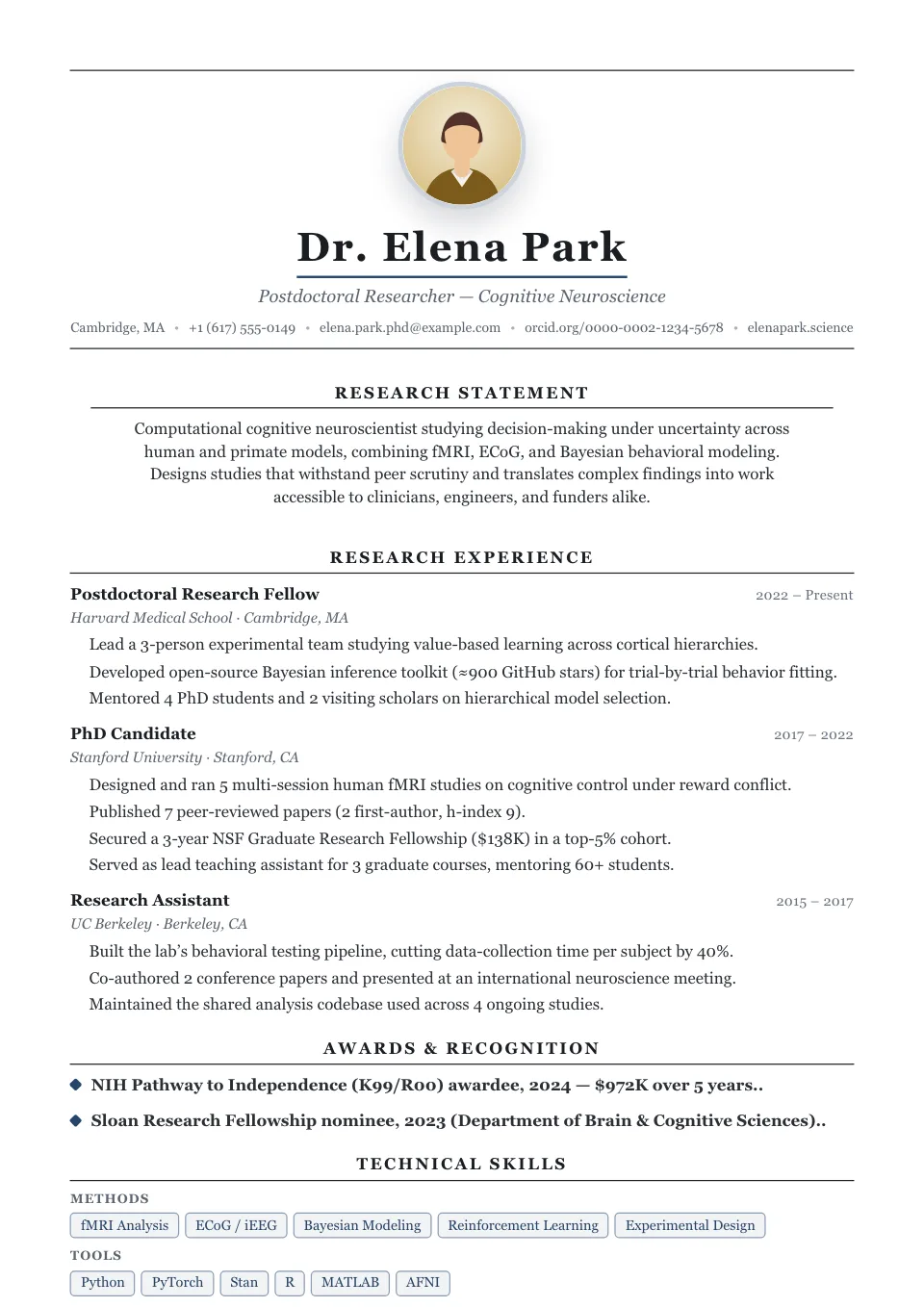
Ivy League with Photo
Photo — use with careA prestige-led centered structure with a portrait set into the masthead — academic polish with a human presence.
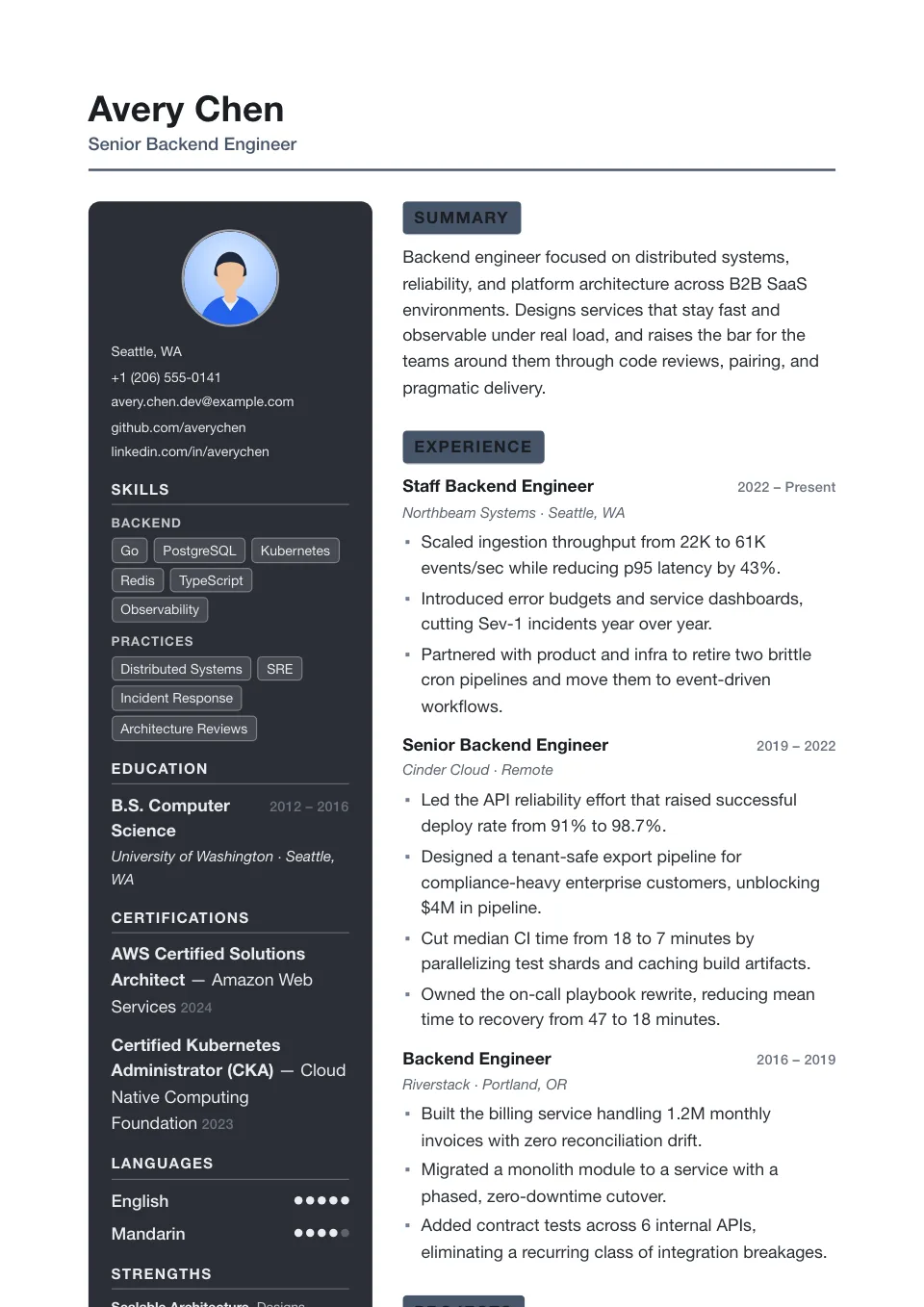
Canvas
Photo — use with careA charcoal photo rail, reversed-block headings and gallery-grade whitespace — expressive and spacious for design-led roles.
Two-Column Resume Templates
A sidebar for skills, tools, and languages lets a two-column resume template fit more on a single, balanced page. It shines for human-reviewed applications — just keep a single-column backup ready for strict ATS pipelines.
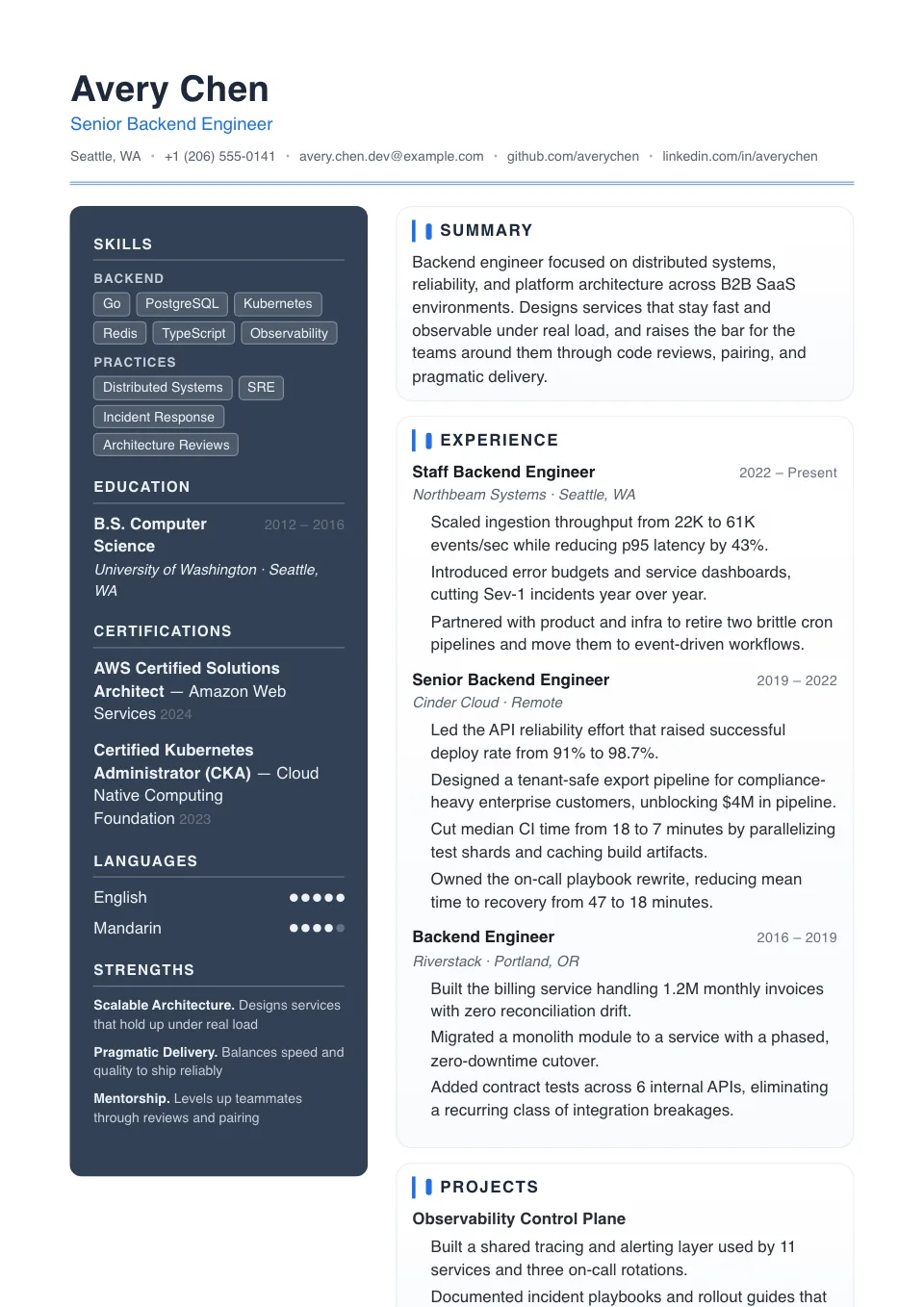
Double Column
Two columnA balanced two-column split with a slate sidebar for skills-rich resumes that still read cleanly.
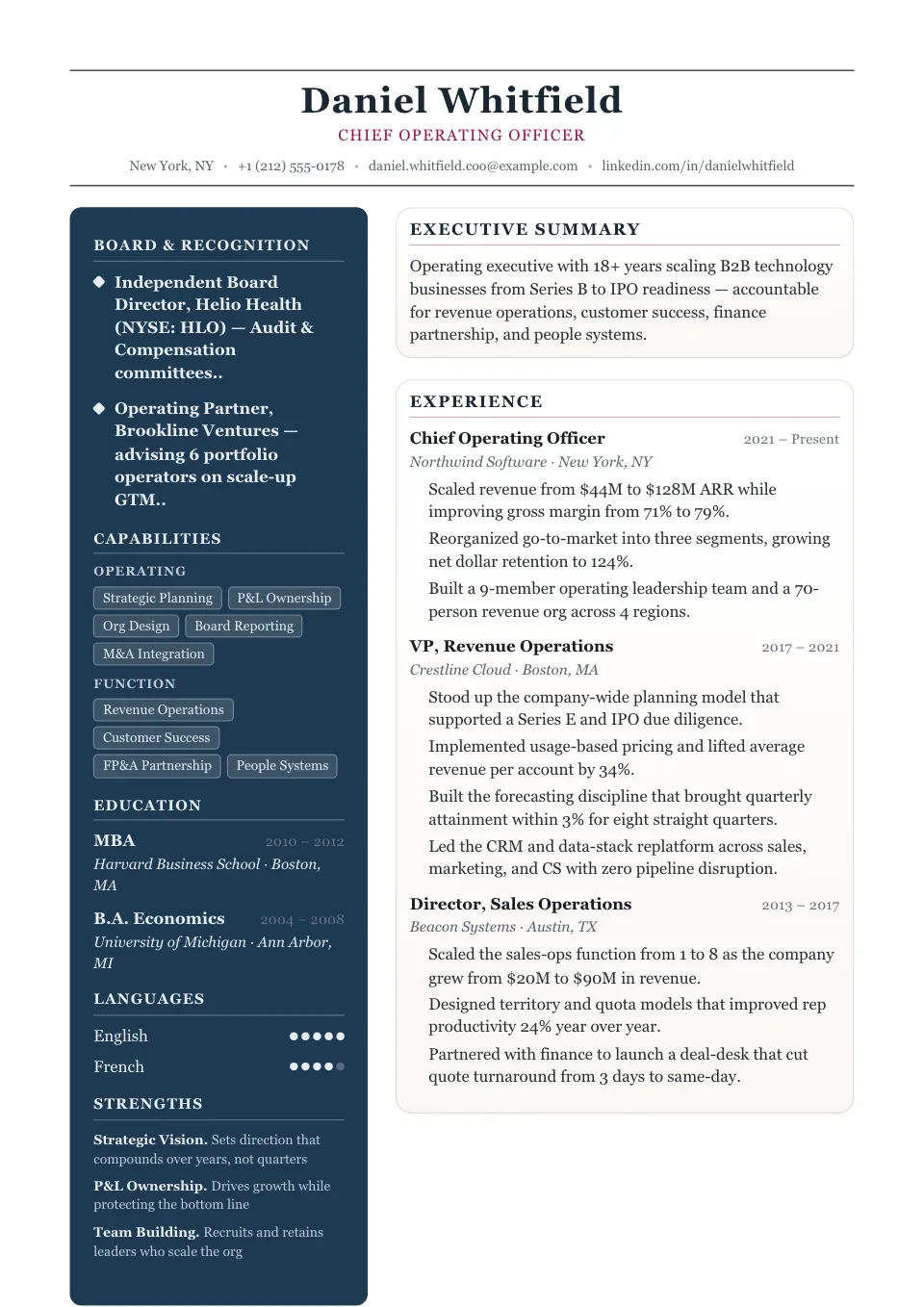
Elegant
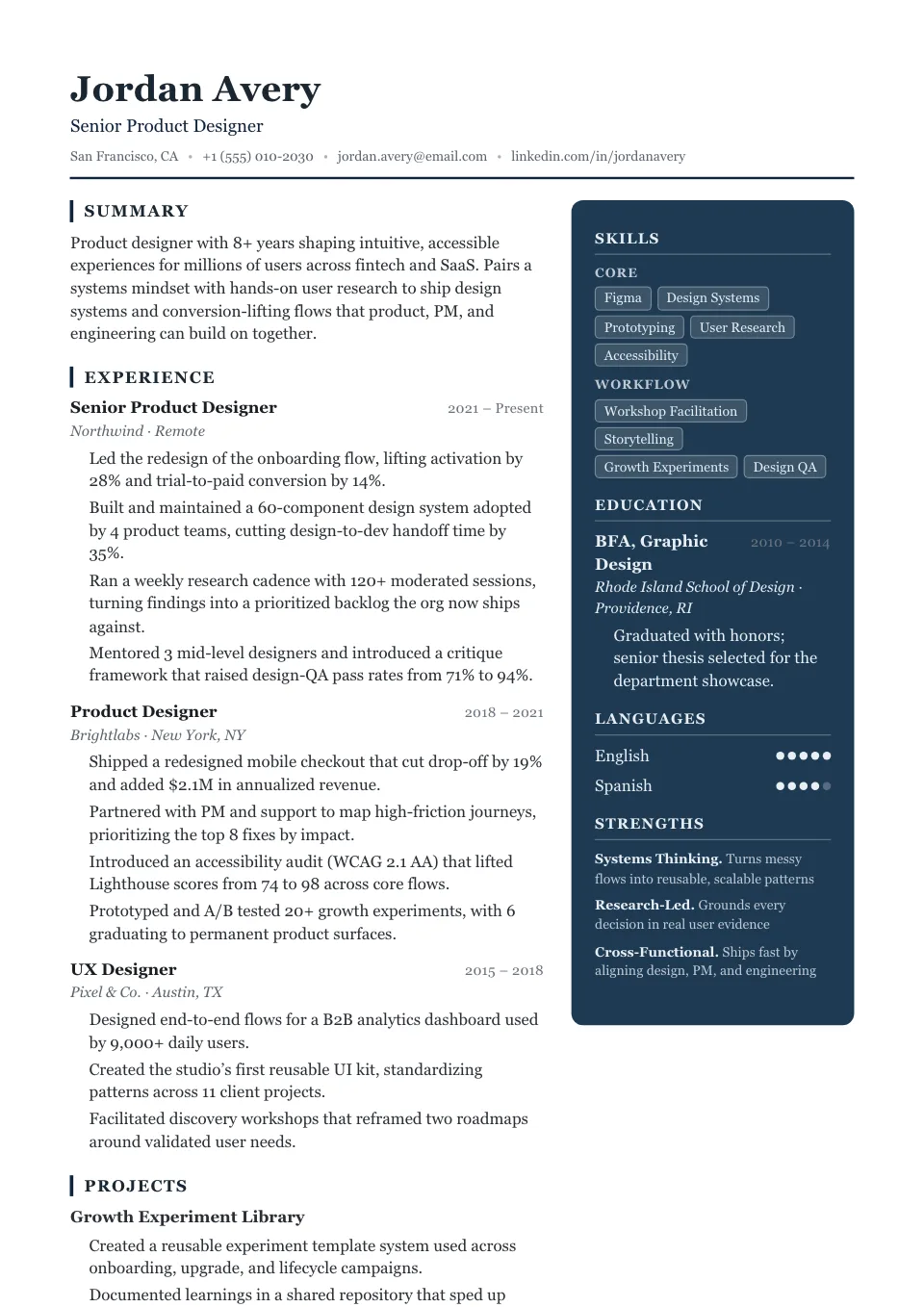
Two columnA deep navy sidebar carries contact, skills and languages in light type while a serif main column gives experience room to breathe — the quietly prestigious two-column.
Advisor
Two columnA deep navy sidebar mirrored to the right with accent-bar headings — measured and serif-led for consulting and strategy.
ATS-Friendly Resume Templates
Clean single column, standard headings, real text, top-to-bottom order — that is what lets an Applicant Tracking System read every line. When software screens first, reach for an ATS-friendly resume template and you never have to guess.
Single Column
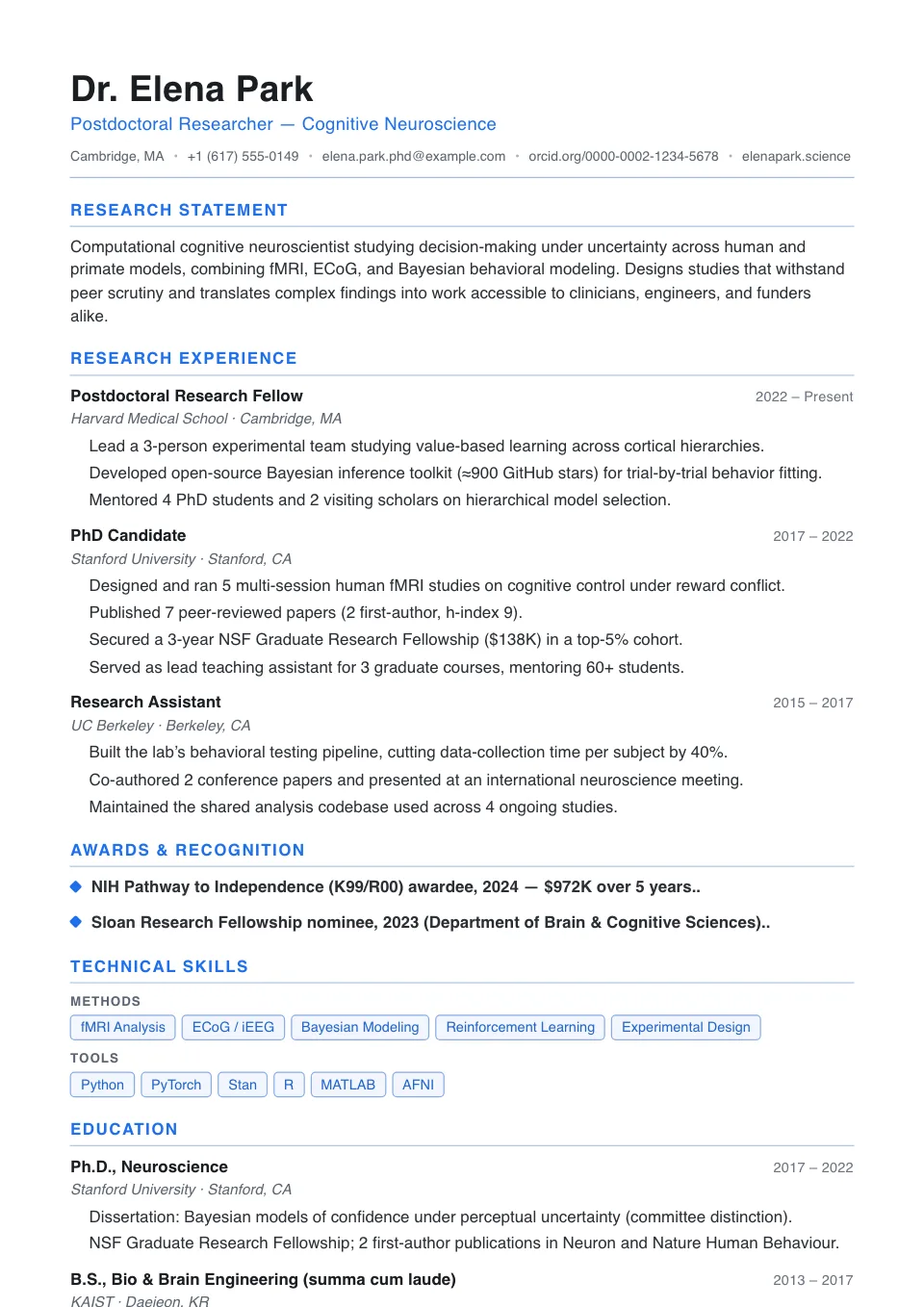
ATS-friendlyOne clean full-width column with thin section rules — the most parser-friendly layout, built to clear Workday, Taleo and Greenhouse line by line.
Essential
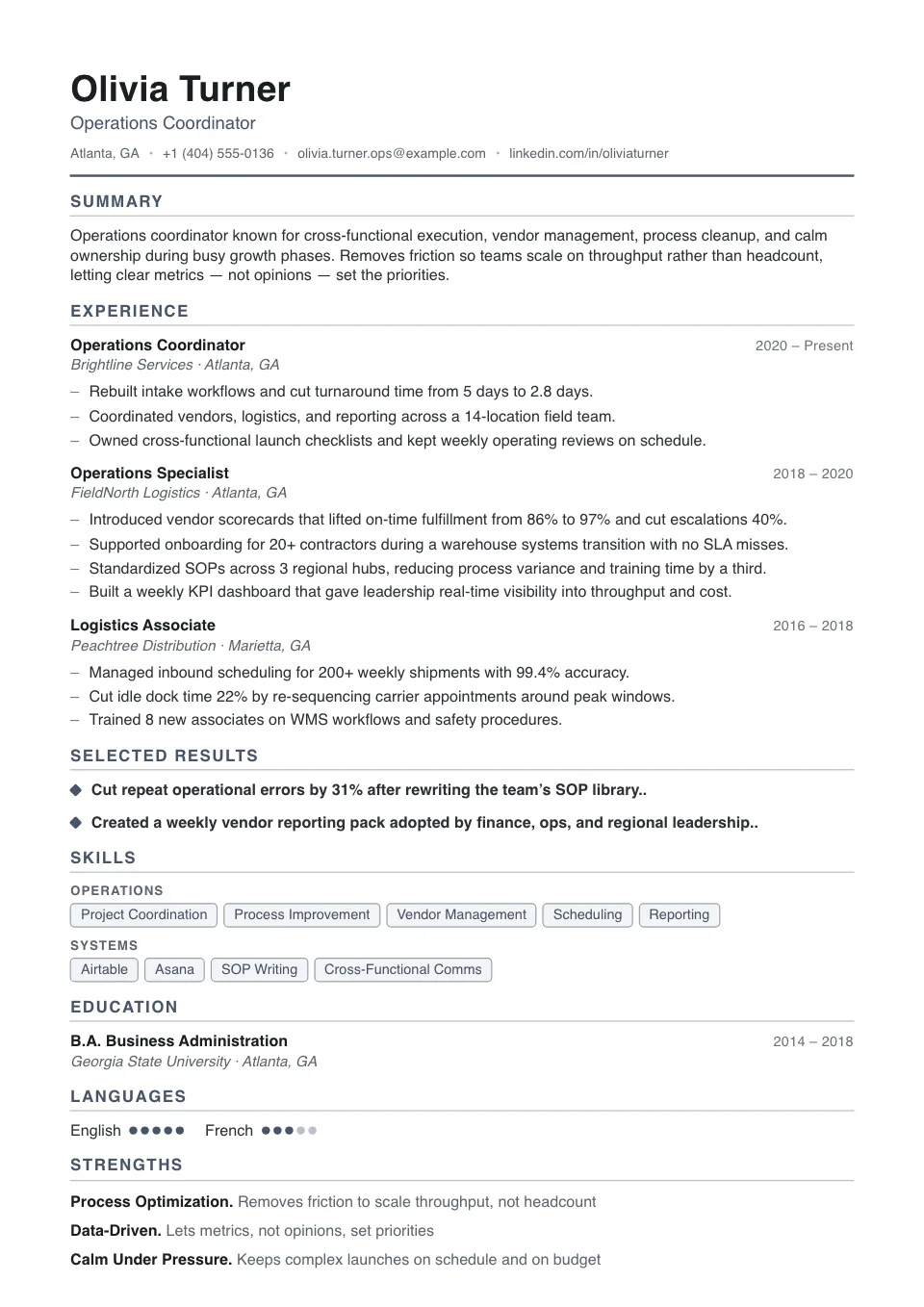
ATS-friendlyA no-frills single column packed a notch tighter, with dash bullets and quiet rules — maximum content, zero parsing risk.
Compact
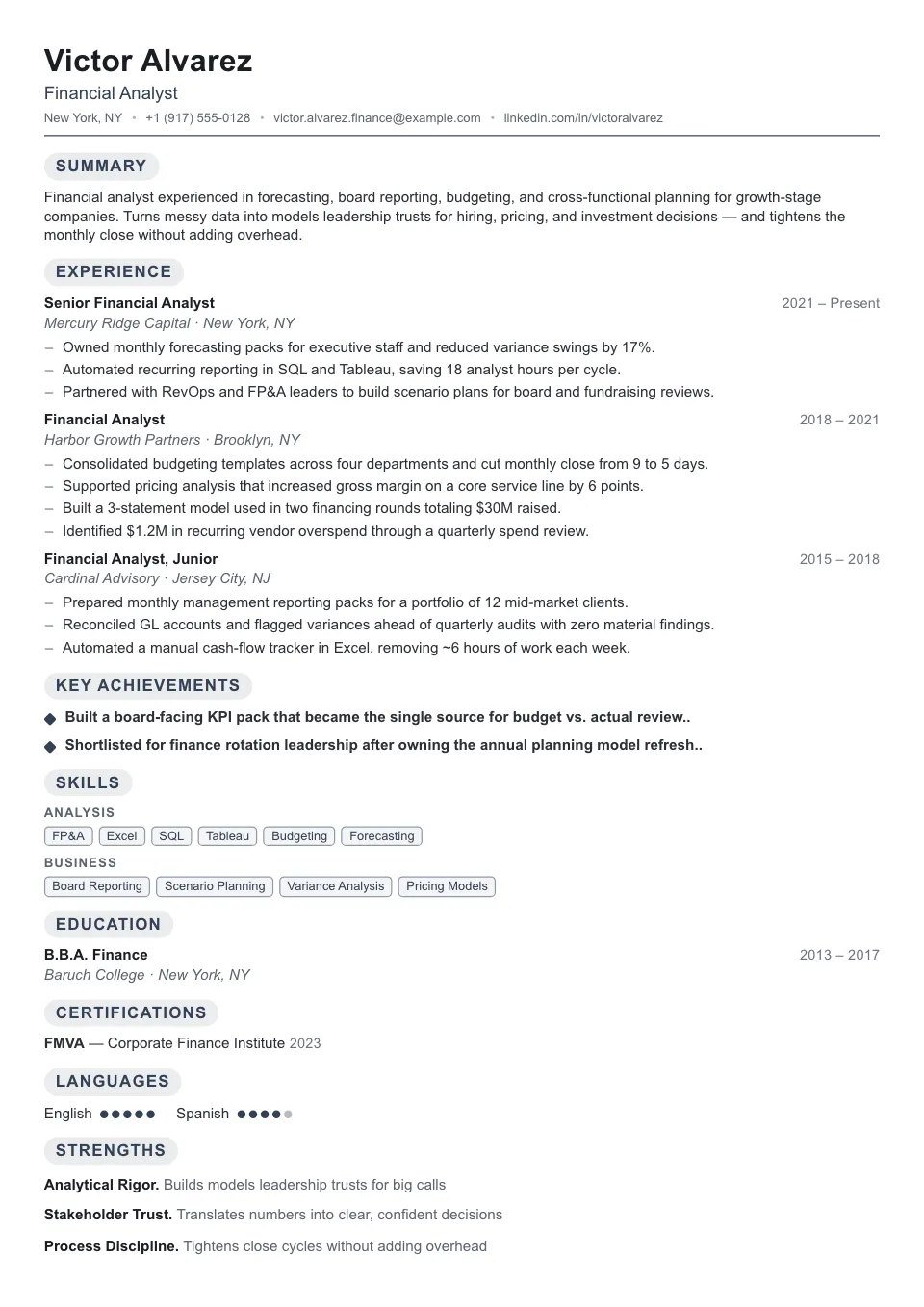
ATS-friendlyThe densest single column we ship: trimmed spacing and plain headings to fit a senior career on one page without losing scannability.
Timeline Resume Templates
A clear chronological spine connects your roles so promotions and tenure stand out at a glance. Built for experienced professionals, a timeline resume template reads top-to-bottom, which keeps the structure ATS-friendly.
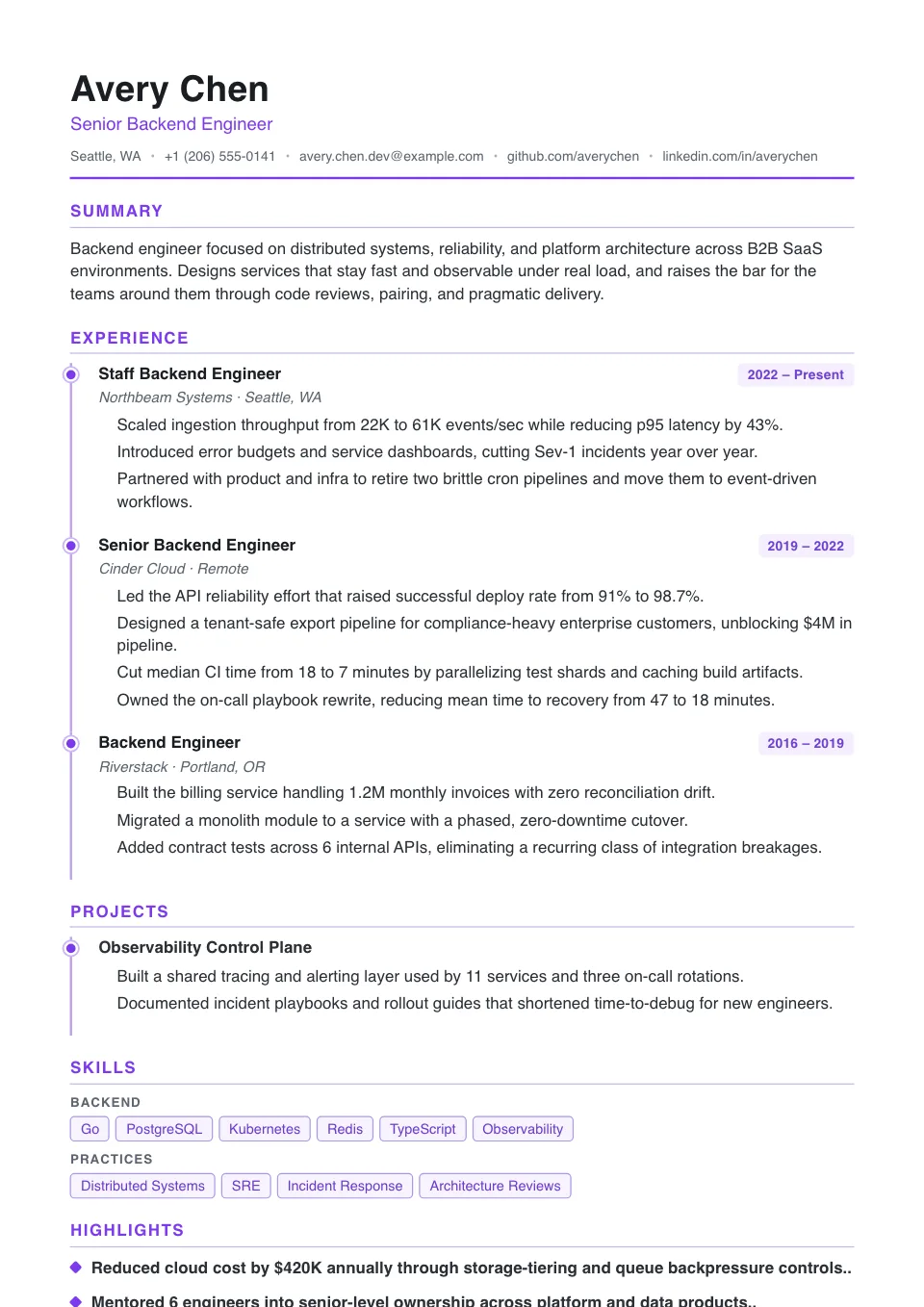
Timeline
ATS-friendlyA vertical timeline rail with disc nodes makes career progression obvious at a glance — chronology-first.
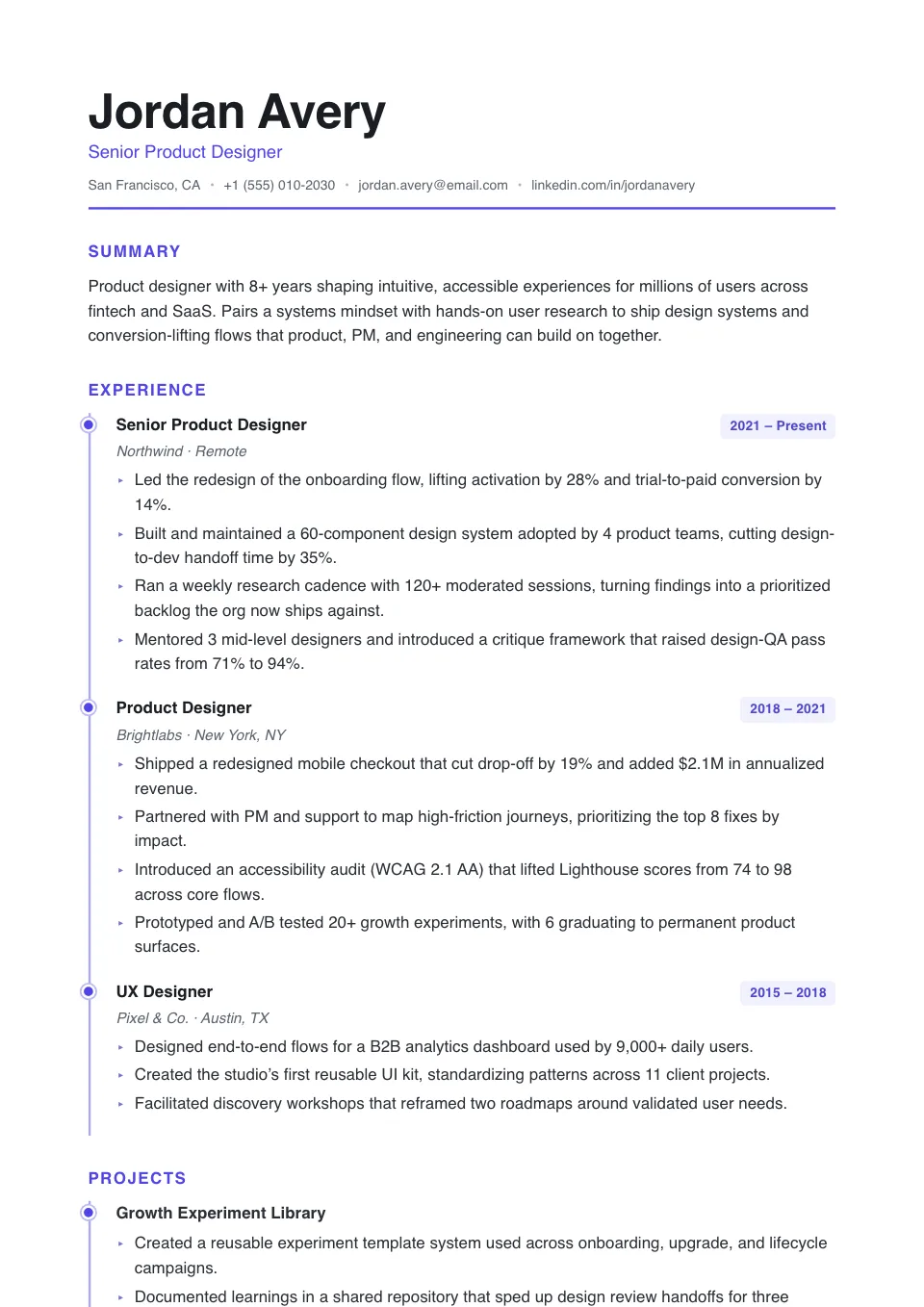
Ascent
ATS-friendlyAn airy timeline with an oversized name and arrow nodes — momentum-forward for fast-rising careers.
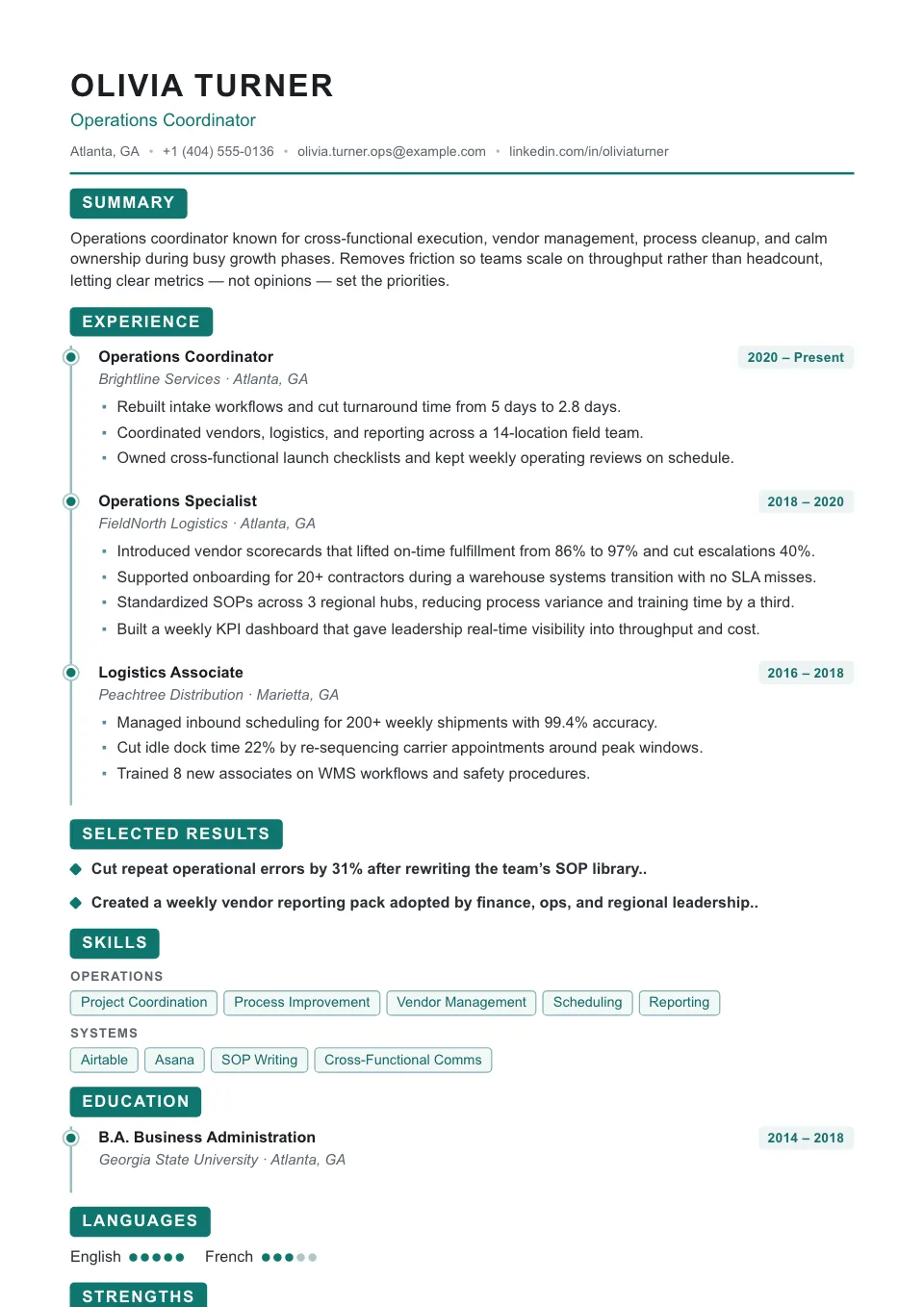
Momentum
ATS-friendlyA tight timeline with an uppercase name and reversed-block nodes — a confident, high-energy trajectory.
How people actually use these templates
Pick a free resume template, import or draft your content, tailor it to the job, then download it as a PDF or Word (DOCX) file, or share the final version.
All
Switch fonts, spacing, paper size, margins, and accents without rebuilding content.
ATS-friendly
Single-column and timeline options for high-confidence parsing and faster tailoring.
Two column
Sidebar and two-column layouts for human-reviewed applications and portfolio-driven roles.
Picking a resume template — your questions answered
Nine quick answers covering ATS-friendliness, single vs two-column layouts, photo variants, font / color flexibility, Word and Google Docs export, and switching templates without losing content.
01Which template is the safest for ATS?
Any template labelled ATS-friendly — single-column layouts like Single Column, Compact, Minimal, Classic, Modern, Polished, High Performer, Ivy League, and Timeline. They render top-to-bottom in one column, the order every ATS parser expects. Two-column templates (Stylish, Creative, Double Column, Elegant, Contemporary) carry a "use with care" badge because some older parsers read columns out of order.
02Should I use a single-column or two-column template?
For most ATS submissions, single-column wins — universal parsing reliability, no risk of jumbled order. Two-column is fine for human-reviewed applications (design, brand, marketing, portfolio submissions) where visual personality matters and you know a recruiter will see it directly. When in doubt, pick single-column.
03What's the difference between Photo and Core (no-photo) templates?
Photo variants include a portrait in the header — best for people-facing roles and regions where photos are common (parts of EU / APAC). Core variants (the default) are clean and photo-free — the safest for US / UK / Canada applications where photos can introduce bias-screening risk. Every layout is otherwise the same engine, so you can toggle the photo on or off at any time.
04Can I add my photo to any template?
Yes — every template supports the Show photo toggle in the Design & Font panel; it just won't affect templates designed without a photo slot in the header. Photo variants (Single Column with Photo, Ivy League with Photo, Stylish, etc.) integrate the photo into the layout from the start, which looks better than retrofitting one.
05Can I switch templates after I start writing?
Yes — and without losing a single character. All 50+ templates share one rendering engine; switching only swaps the theme variables (layout, accent color, fonts, spacing, margins). Try several templates in the Design & Font panel until one fits before downloading.
06Can I change the font, color, or spacing on any template?
Yes. Every template exposes the same Design controls: 7 ATS-friendly fonts (Calibri, Arial, Georgia, Garamond, Helvetica, Times New Roman, Verdana), 8 accent colors, page margin (8–28mm), section spacing (8–32px), font size (9–13pt), and A4 / Letter paper. You can also pin one or two columns, and toggle the photo on or off.
07Can I download these templates in Word or Google Docs?
Yes. Every template exports to PDF and Word (.docx) — the .docx opens and stays fully editable in Microsoft Word, and you can also upload it straight to Google Docs. There's no separate Word resume template or Google Docs resume template to hunt for; the same template gives you both formats from one download.
08Are these resume templates really free?
Yes — every template is free to use, including the photo variants. There are no Pro-only templates. The Pro plan unlocks unlimited PDF/DOCX exports, AI rewriting, AI cover letters, and public share links, but the template library itself is open to everyone with a free account.
09Can I see what a template looks like with my own content?
Once you create a resume (free, no sign-up), you can switch between any of the 50+ templates in the Design & Font panel and your actual content renders live in the preview — much more accurate than judging from the gallery thumbnail. Switching is non-destructive: try any template, undo any time.
One toolkit for your whole job search
Check, build, format, and write — every tool shares the same ATS engine, so your resume and cover letter stay consistent end to end.
Free ATS Resume Checker
Upload your resume for an instant ATS score and 20 actionable checks across content, format, skills, and style.
Check my resumeATS Resume Builder
Build an ATS-friendly resume with real-time ATS scoring, an AI resume maker, and pixel-perfect PDF & DOCX export.
Build my resumeCover Letter Generator
Generate a job-matched cover letter that pairs with your resume and stays clean enough for any applicant tracking system.
Write my cover letter