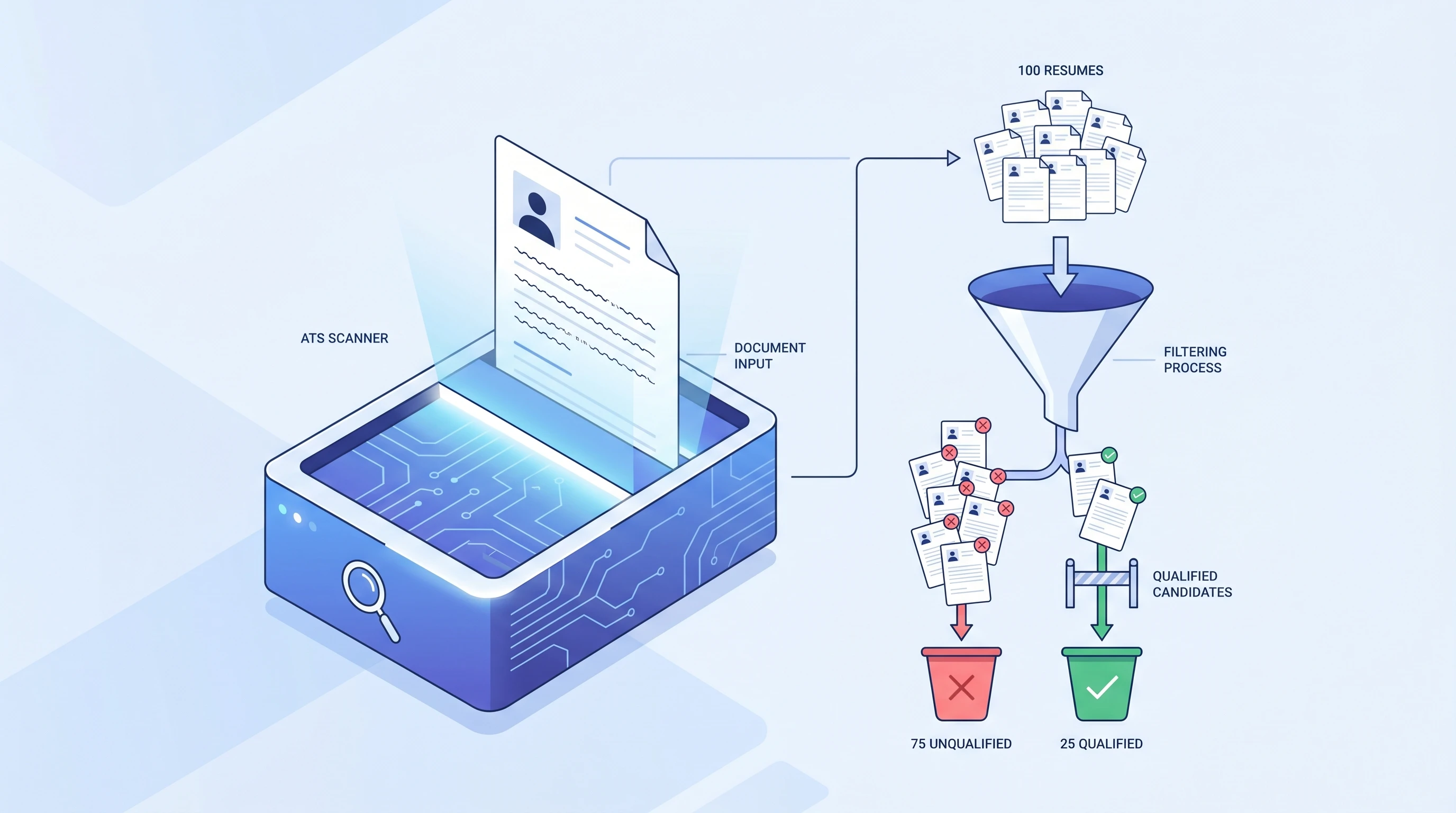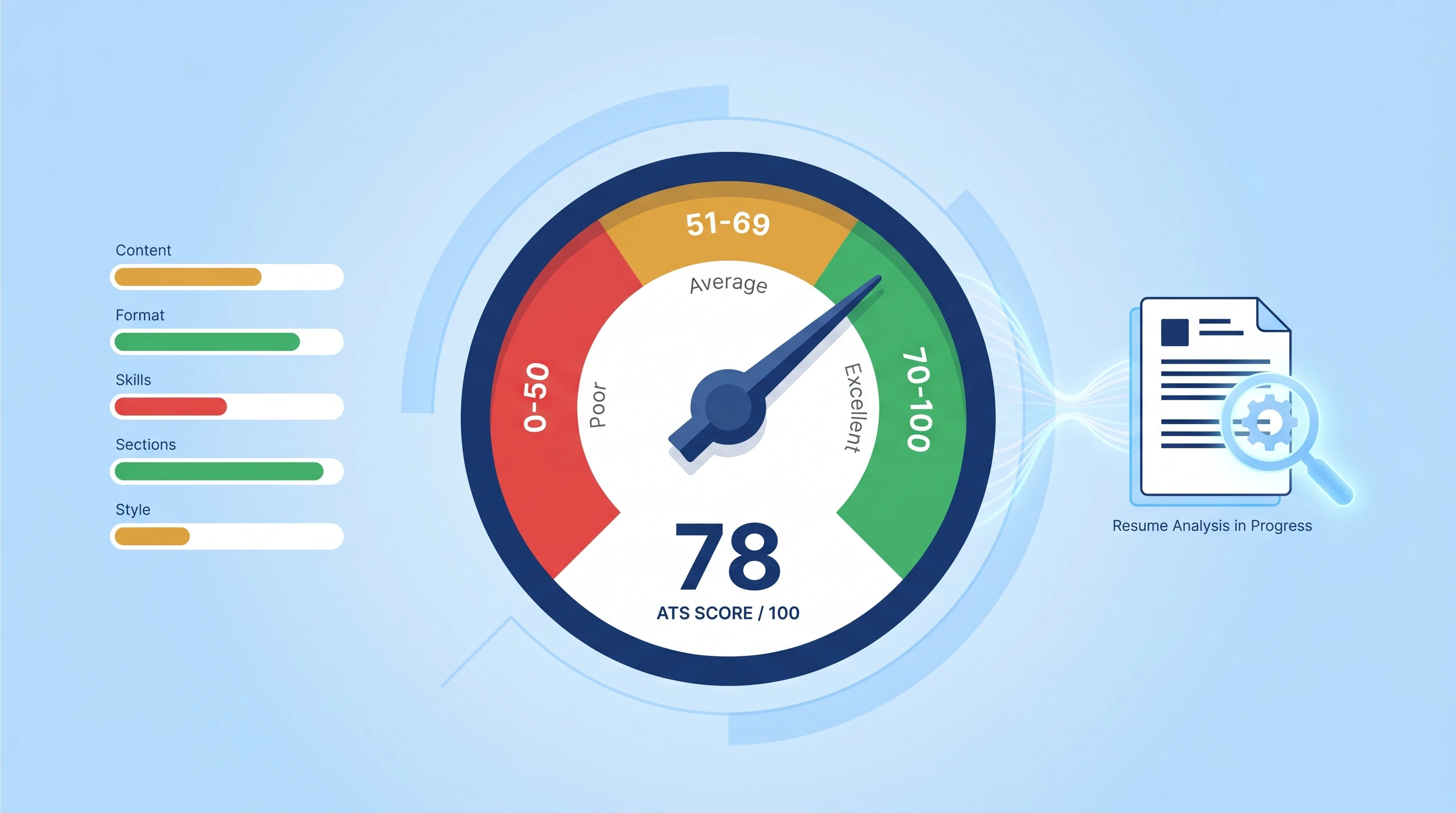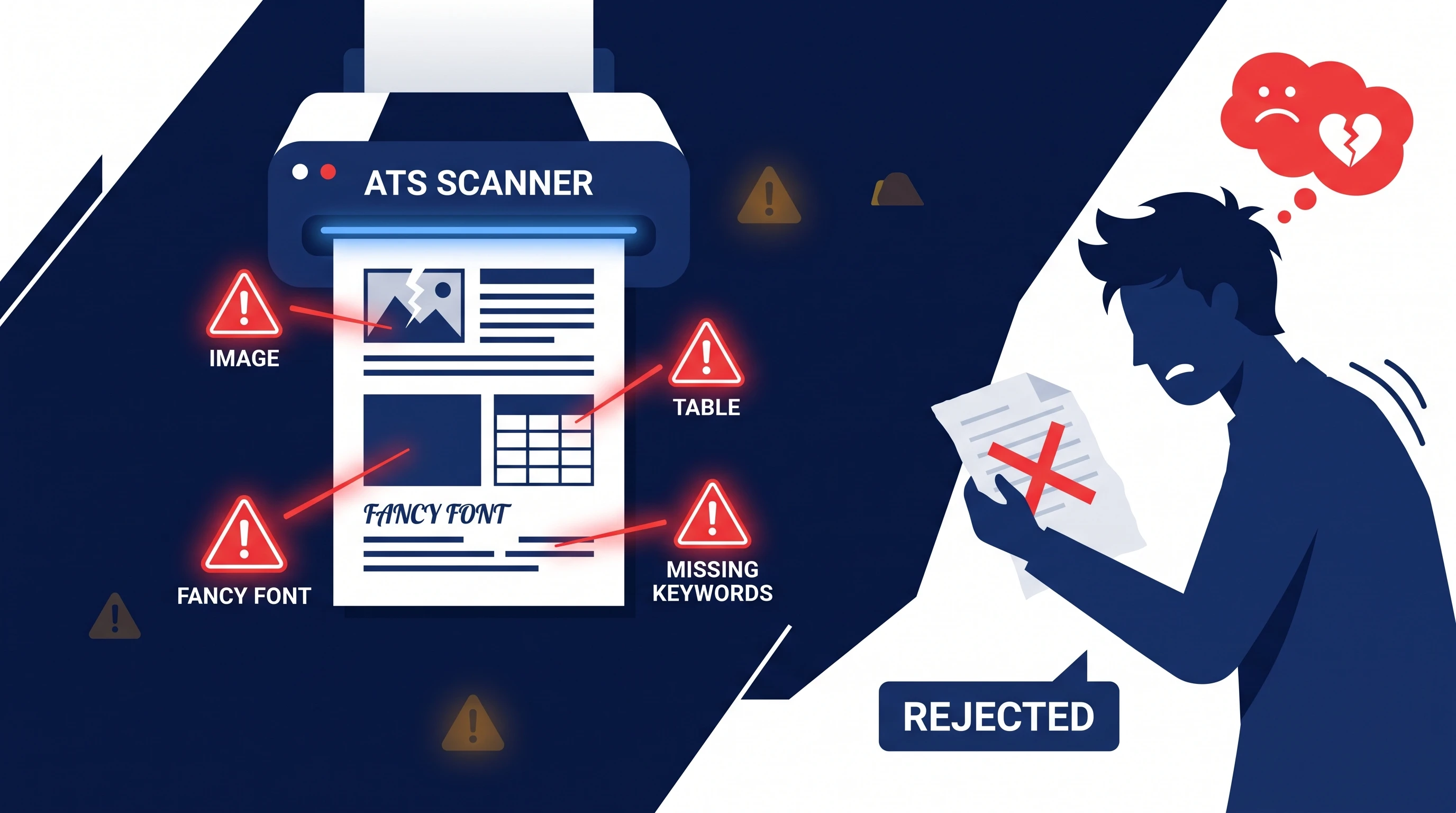
You spent three hours polishing your resume in Canva. It looks great. You submit it to 25 jobs over the weekend. Monday morning: silence. The reason isn't your experience — it's that the design that made the resume look great to you is the same design that made it invisible to the ATS that scanned it first. Making your resume ATS-friendly is a 15-minute, six-step fix. Run a free ATS scan before you read on if you want to see what's actually getting through.
Why ATS-Friendly Matters Before You Touch Anything Else
An ATS-friendly resume is a resume the parser can read cleanly: single column, plain section headers, standard sans-serif font, and .docx first. The Harvard Business School and Accenture Hidden Workers report found automated hiring systems can exclude qualified candidates when filters and parsing rules are too rigid. Fix the format first and your resume has a better chance of being read correctly before you rewrite a single bullet.
If you want a deeper understanding of how the ATS handles your resume in the first place, read What is an ATS? first. This guide is the implementation playbook on top of that.
What You Need Before You Start
Three things:
- Your current resume —
.docxor.pdf(we'll convert if needed). - One real job description you're about to apply to — used in Step 4 to tailor keywords.
- 15 minutes — no full rewrite needed; this is a format pass, not a content pass.
Step 1: Strip the Design
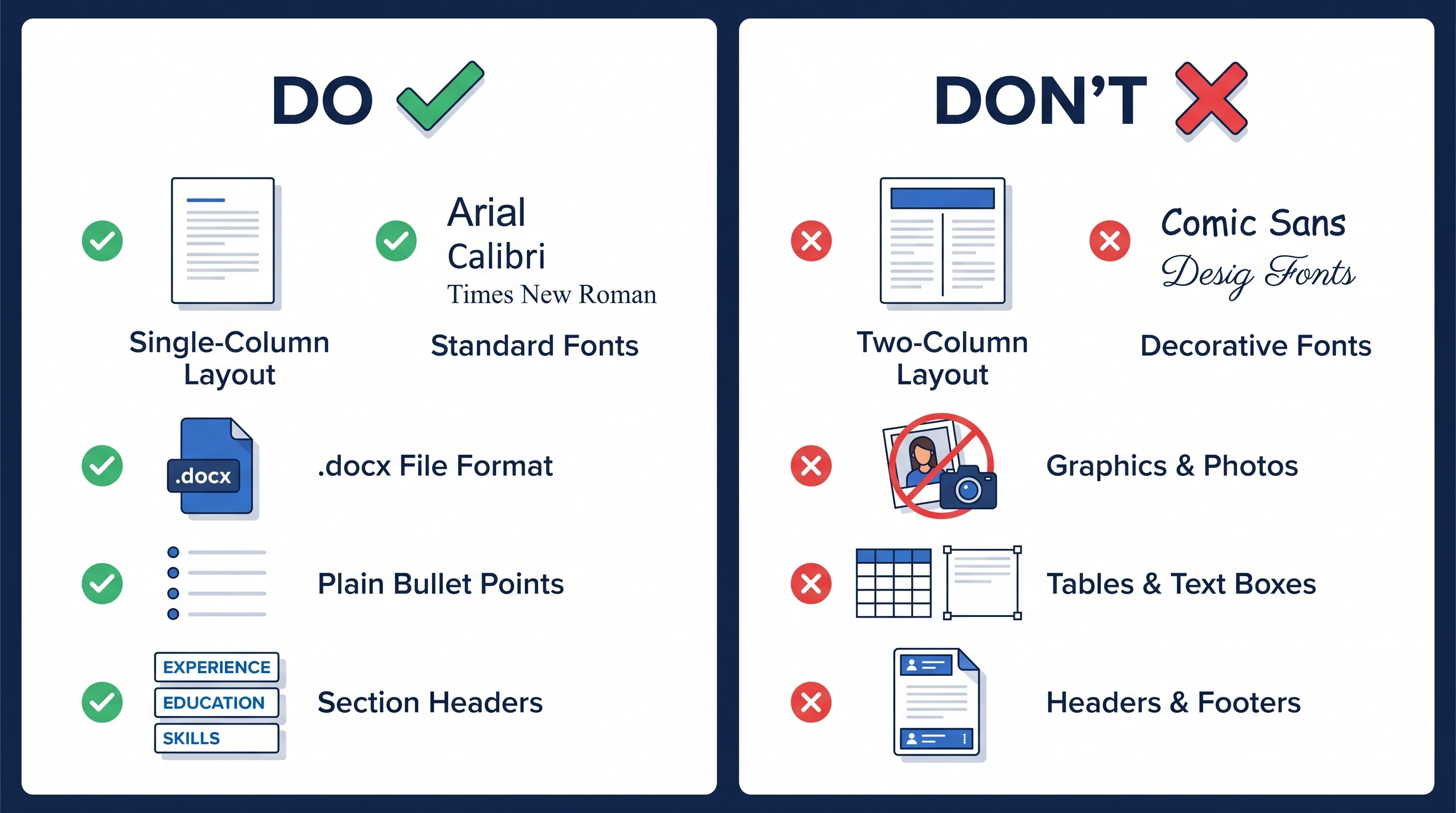
Stripping the design is the single highest-leverage step — it fixes the parser failures behind most silent rejections. Open your resume, save a copy named resume-ats.docx, and remove everything that isn't plain text in a single column.
- Delete two-column layouts and sidebars. The parser reads left-to-right across the page. Columns get interleaved and your job titles end up mashed in with your skills list.
- Delete tables and text boxes. Cell content gets read in the wrong order, and many parsers give up entirely when they hit one.
- Delete photos, icons, and skill-rating bars/stars. Text inside an image is invisible to the parser.
- Delete colored backgrounds, decorative borders, and watermarks. They add no information for the parser and sometimes break PDF extraction.
If stripping the design breaks the layout, that's the point. Plain is the goal. A resume that looks "boring" in a Canva preview is exactly the resume an ATS reads cleanly.
Step 2: Use Plain Section Headers
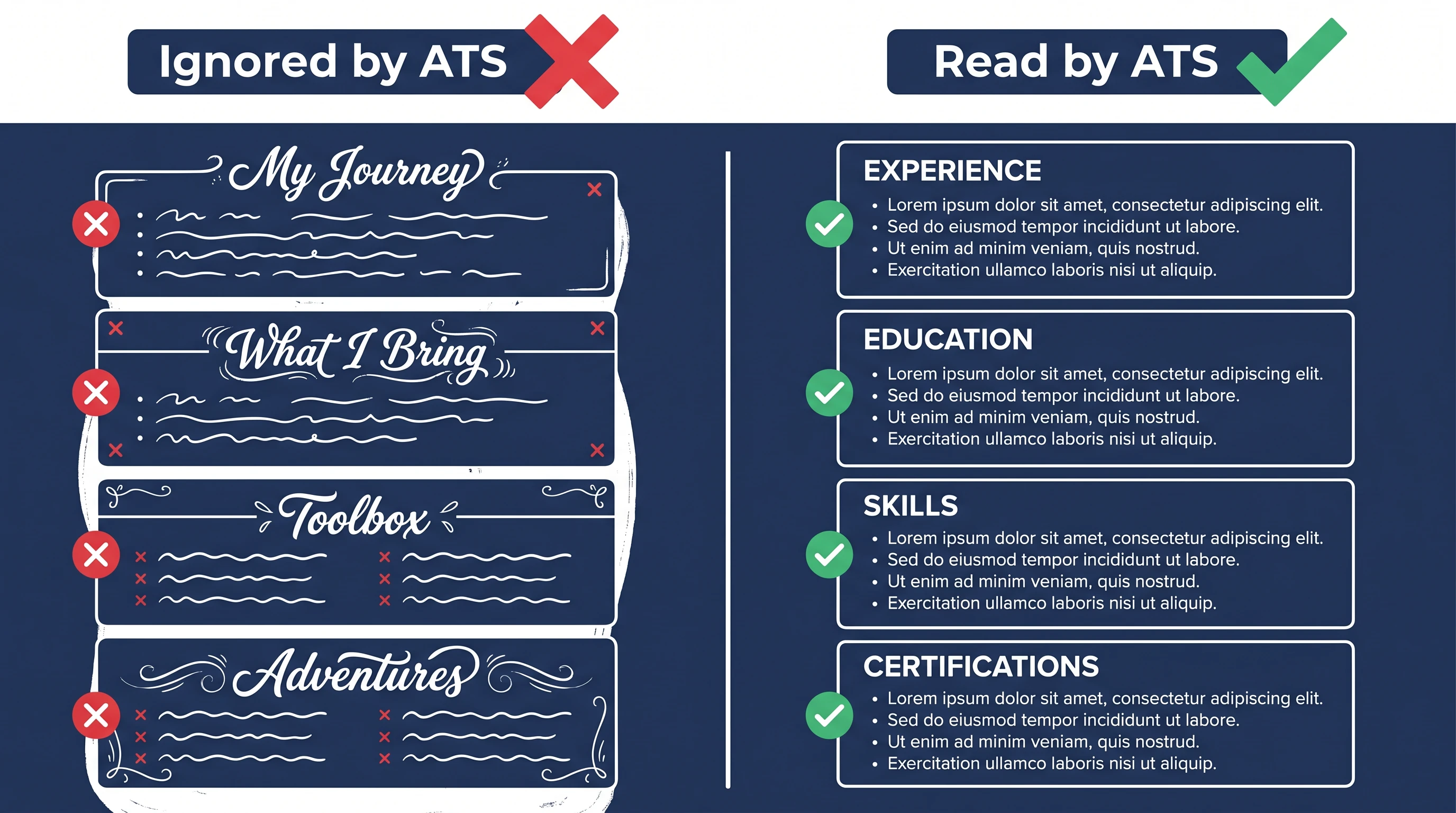
ATS parsers use exact section-header strings to slice your document into the right fields. Creative headers get ignored entirely, so the content inside them never gets indexed against the job description. Replace cute headers with their plain equivalents:
| ❌ Creative | ✅ Plain |
|---|---|
| My Journey | EXPERIENCE |
| What I Bring | SKILLS |
| Toolbox | SKILLS |
| Adventures | PROJECTS |
| Schools | EDUCATION |
| Story So Far | SUMMARY |
Use ALL-CAPS or Title Case, but the string itself must be one of the standard names: Summary, Experience, Education, Skills, Certifications, Projects, Languages. Anything outside this list is a coin-flip on whether the parser will recognize it.
Step 3: Move Contact Info into the Body
Move your name, email, phone, and city/state into the first two lines of the body of the document — not the header area. Many parsers skip Word headers and footers by default, which means a resume with the candidate's name in the header gets stored in the database with no name at all.
The very first line: your name in 14-16pt. The second line: email · phone · city, state · linkedin.com/in/.... That's it. No logo, no tagline, no banner.
Curious how your resume actually scores?
Run our free 60-second ATS scan to see your match score, missing keywords, and a 20-point diagnostic — before you click Apply.
Try the Free ATS ScanStep 4: Tailor Keywords for Each Job
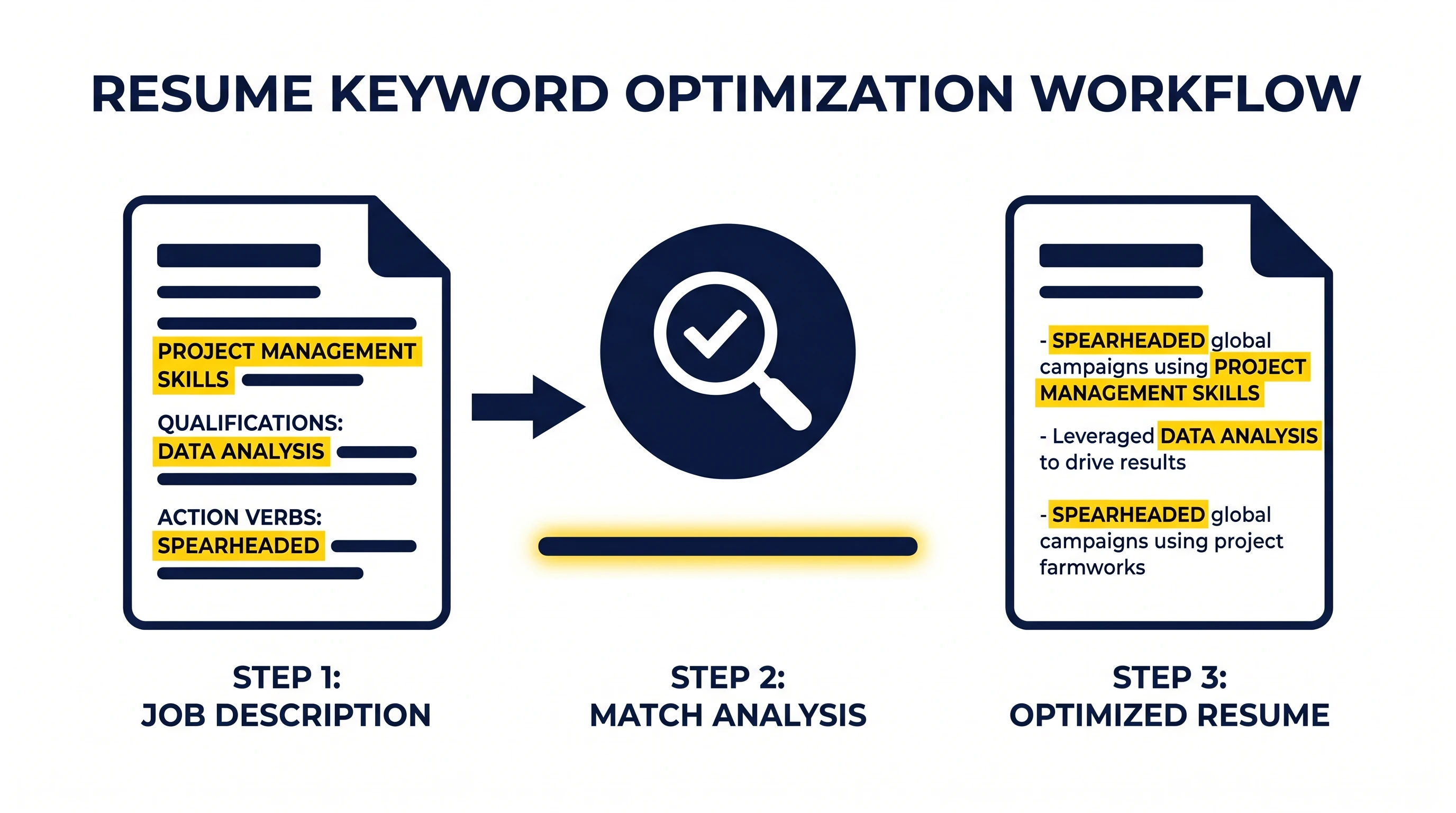
Tailoring keywords is the difference between a generic 62-scoring resume and a tailored 88-scoring resume for the same role. Open the job description and find the top 5-8 phrases that appear in the "Requirements" / "Qualifications" / "Responsibilities" sections. Mirror them — exact wording — in your resume bullets.
The rule is verbatim once. If the posting says:
- "stakeholder management" → don't write "managed stakeholders" → write "stakeholder management"
- "data pipeline" → don't write "ETL flows" → write "data pipeline"
- "Agile" → don't write "iterative process" → write "Agile"
You're not stuffing keywords; you're matching the parser's literal comparison. One natural mention per phrase is enough. Adding the same phrase 5 times triggers the keyword-stuffing penalty in modern ATS scorers and looks ridiculous to a human reviewer.
This step is where most pre-scan score jumps come from. If you only do one thing in this list, do this one — see the ATS score guide for what counts as a "good" score and the math behind the boost.
Step 5: Save as .docx (and PDF Only When Required)
Save as .docx and submit .docx whenever the form allows it. .docx is the format ATS parsers were originally built around, and almost all of them handle it cleanly. PDFs only when required — and only ever text-based PDFs (export from Word or Google Docs, not "Save as PDF" from a designer tool that flattens to images).
Quick test: open the PDF, try to select a line of text and copy it. If the text copies as text, the PDF is parser-readable. If it copies as nothing or garbled characters, the PDF is image-based and 90% of ATS parsers can't read it.
Step 6: Scan Before You Send
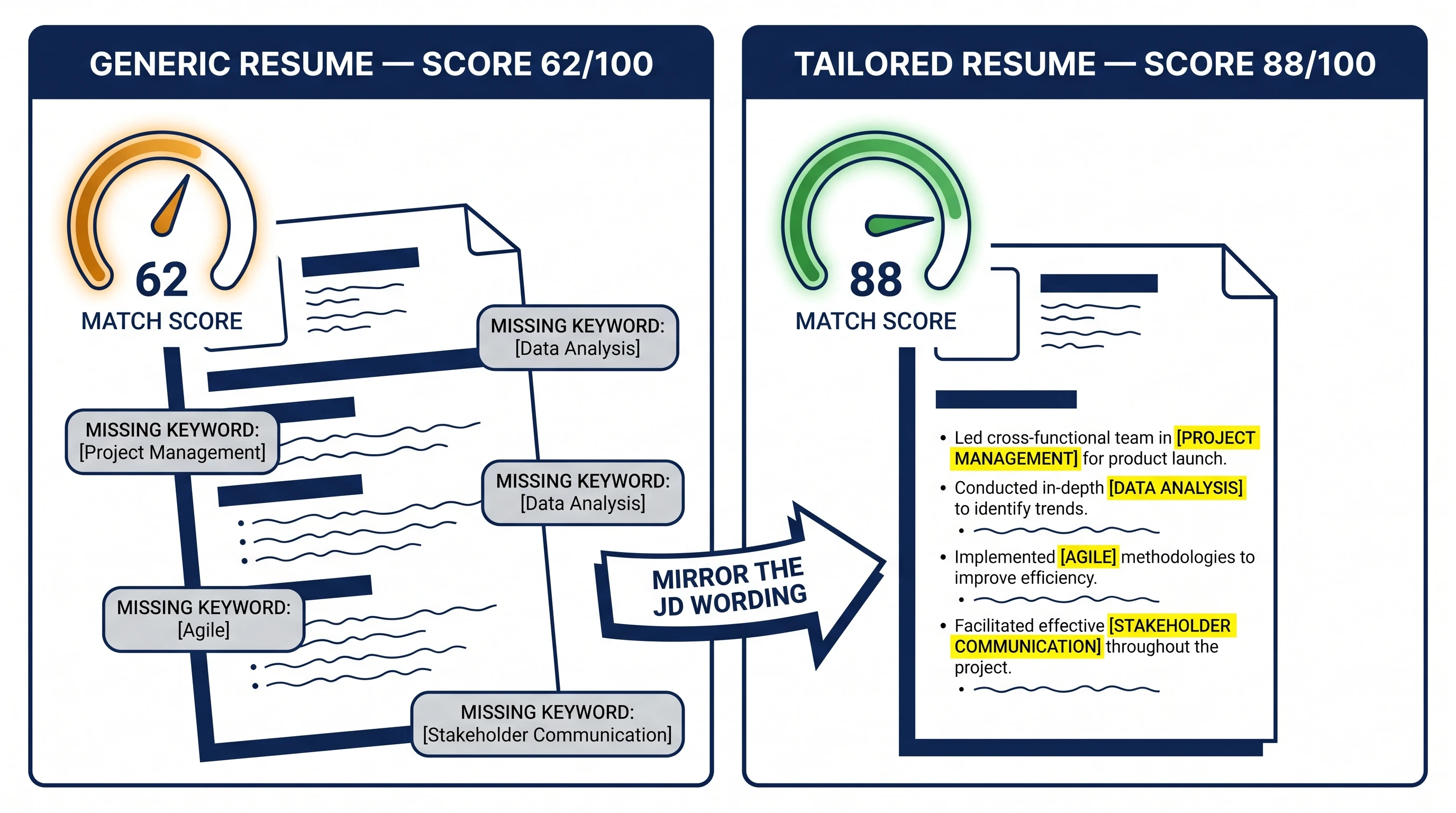
The cheapest way to know your 15-minute fix worked: paste the tailored resume + the actual job description into an online ATS resume scanner. You'll get a 0-100 match score, the missing keywords flagged, and any remaining format issues called out. Aim for 80+ before you click Apply.
You can run a free scan here with no signup required for the first one. The scanner will also flag anything you missed in Steps 1-5 (a stray text box, a header in the wrong place) so you can fix it before submission.
The most underrated step is Step 2 (plain section headers). Many resumes pass Step 1 (single column, plain fonts) but still fail because creative section names like "Toolbox" or "My Journey" never get recognized — so the bullets inside them never get scored against the job description at all.
Scan your resume against any job — free
Drop your resume and the job description. Get your ATS match score, missing keywords, and rewrite suggestions in under 60 seconds. No card required.
Start Free ScanCommon Mistakes to Avoid
- Don't keyword-stuff in white text or below the page margin. Modern ATS parsers flag invisible-text patterns as suspicious and recruiters who notice it auto-reject.
- Don't abbreviate certifications and tools without spelling them out at least once. Write "Project Management Professional (PMP)" the first time, then just "PMP" afterward. The parser matches both forms.
- Don't use creative file names like
mary-best-resume-final-v3.docx. Usefirstname-lastname-resume.docx. Some ATS implementations index the filename as a backup name field. - Don't include irrelevant sections (Hobbies, References, Photo). They eat valuable real estate and aren't scored by the ATS. References go on a separate document if requested.
- Don't apply with the same generic resume to 50 jobs. Even 10 minutes of keyword tailoring per posting (Step 4) outperforms 50 untargeted submissions. For the data on why, see our breakdown of the most common ATS rejection mistakes.
Frequently Asked Questions
What is an ATS-friendly resume format?
An ATS-friendly resume format is a single-column layout with plain-text section headers (Experience, Education, Skills), a standard sans-serif font (Arial, Calibri, Helvetica) at 11-12pt for body text, no images or tables, and saved as .docx. For the full font / spacing / file-type spec see our ATS-friendly format guide.
How long does it take to make a resume ATS-friendly?
About 15 minutes for an existing resume — most of the time goes to Step 1 (stripping the design) and Step 4 (tailoring keywords). A from-scratch ATS-friendly resume takes 60-90 minutes including content.
Should I send a PDF or a .docx?
.docx first. Use a text-based PDF only when the form explicitly requires PDF. Scanned PDFs and PDFs exported from design tools (Canva, Figma, Photoshop) are almost never parseable.
What fonts are ATS-friendly?
Arial, Calibri, Helvetica, Times New Roman, and Georgia. Avoid decorative or script fonts (Comic Sans, Brush Script, Lobster) and any font that didn't ship with Microsoft Office or Google Docs.
Will an ATS-friendly resume look boring to a human recruiter?
It looks clean, not boring. Recruiters spend 6-8 seconds on the first pass; they're reading for keyword match and clear structure, not admiring the design. Most senior recruiters explicitly prefer single-column resumes because they're faster to skim.
How do I know my resume actually passes the ATS?
Run it through an online ATS resume scanner with the actual job description you're applying to. You'll get a 0-100 score, missing-keyword list, and any format issues flagged in under a minute. You can scan free here, no signup needed for the first scan.